Video
Add Video from Add section for a ready-to-configure section containing one Video block. The video starts at 100% width on desktop and mobile. Use the section settings for page width, layout, background color, and spacing; select the nested Video block for media and playback settings.
The reusable Video block is also available inside other compatible sections and Container layouts.
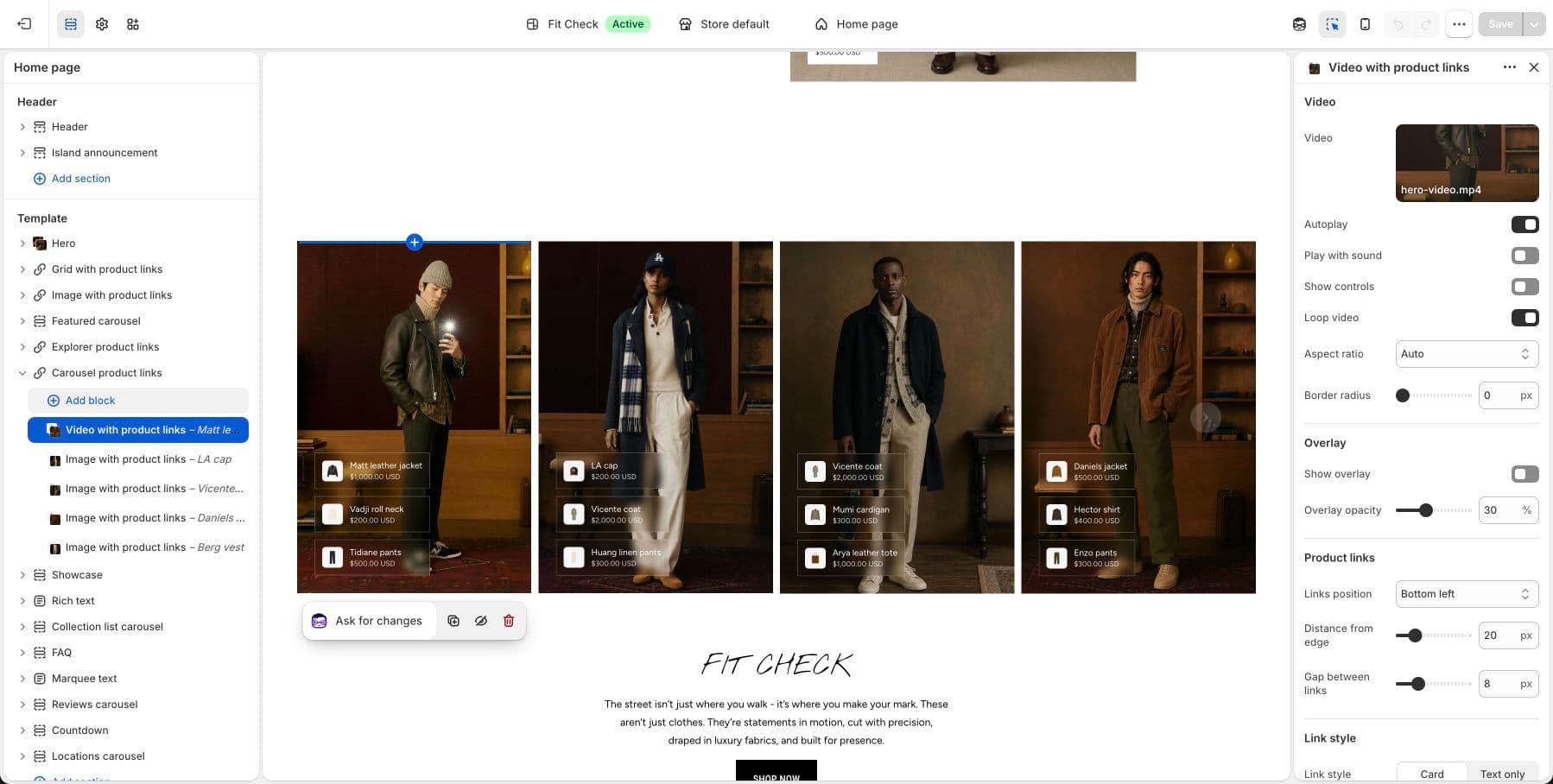
Configure Video Blocks
Use the Video block reference for uploaded, external, social, and mobile-specific video settings. Use Product links when the video needs linked product cards.
Usage
- In the theme editor, click Add section and select Video under Media.
- Select its nested Video block.
- Choose Uploaded video and select a video from your Files library, or choose an external URL.
- Configure playback and optional mobile-specific media, then check the mobile preview and save.
The preset starts with one video. You can add other supported blocks when your layout needs them; existing Custom sections remain unchanged.
Common Video Settings
| Setting | Description |
|---|---|
| Video source | Select an uploaded Shopify video, external URL, or supported social URL. |
| Playback | Configure autoplay, sound, controls, and loop. |
| Cover | Add desktop or mobile cover images where needed. |
| Mobile video | Use an alternate mobile source when the desktop crop or pacing does not work on phones. |
Tips
- Upload videos to Settings > Files in your Shopify admin before adding them to sections.
- For best performance, use compressed MP4 files. Shopify automatically optimizes uploaded videos.
- Videos set to autoplay must also be muted (browser requirement).