Marquee Sections
Use standalone marquee sections to create scrolling text, image, logo, icon, or divider strips inside page content. Fit Check includes three addable marquee variants: Marquee text, Marquee image, and Marquee icon.
Choose a Variant
| Section | Best for |
|---|---|
| Marquee text | Repeating promotional copy, service notes, drop names, or short editorial phrases. |
| Marquee image | Scrolling image sets, partner marks, product detail crops, or visual rhythm between content sections. |
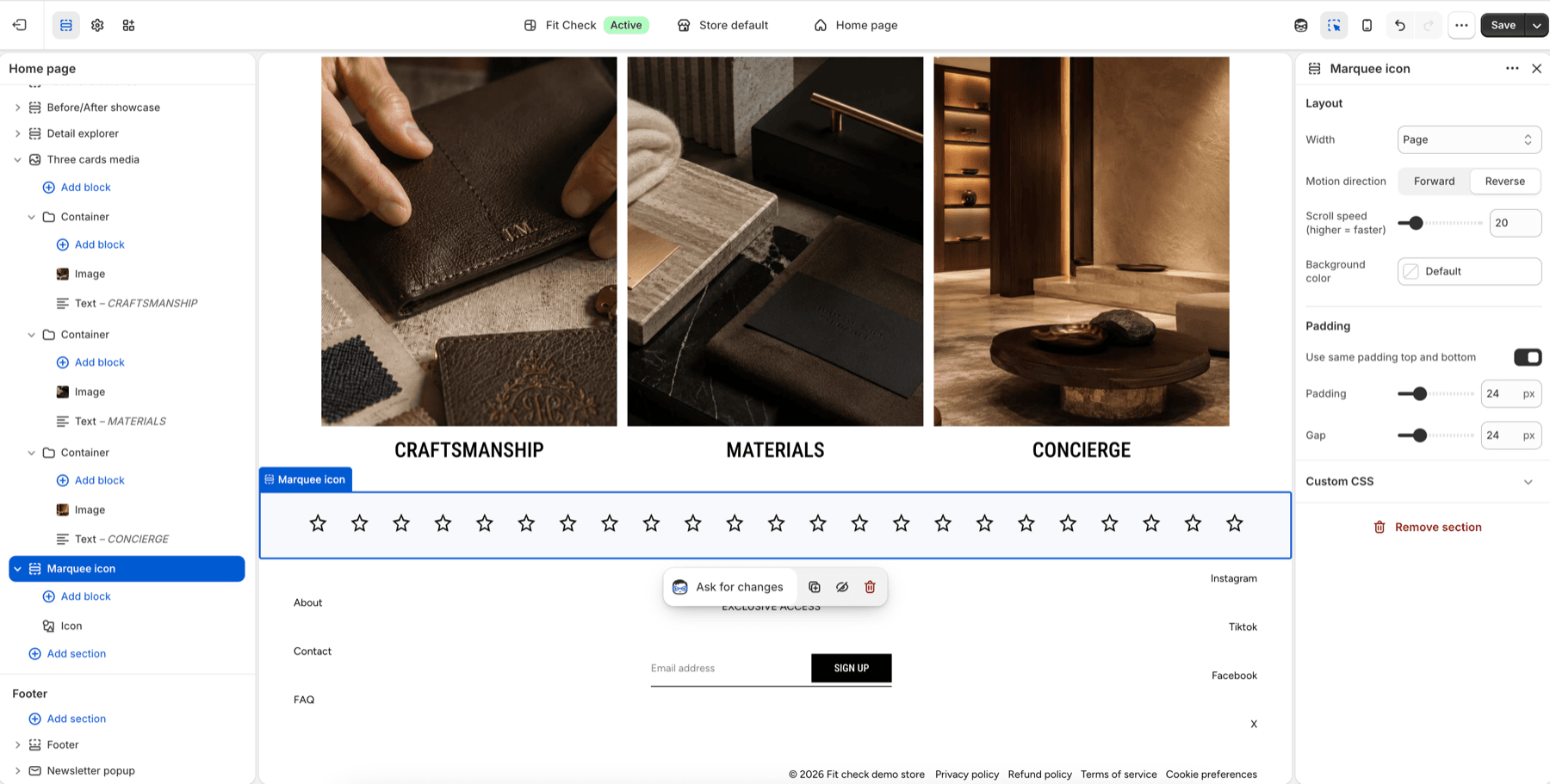
| Marquee icon | Repeating symbols, feature icons, ratings, separators, or lightweight visual accents. |
All three variants accept the same block family: Text, Icon, Image, Logo, and Divider. The preset simply starts with the matching default block type.
Configure the Section
- In the theme editor, click Add section.
- Select Marquee text, Marquee image, or Marquee icon.
- Add, remove, or reorder child blocks for the repeated marquee content.
- Set direction, scroll speed, gap, and padding.
Section Settings
| Setting | Description |
|---|---|
| Width | Choose Page, Full screen, or Custom width. Custom width ranges from 60-100%. |
| Motion direction | Choose Forward or Reverse. |
| Scroll speed (higher = faster) | Control marquee speed from 5-100. Default: 20. |
| Background color | Optional section background color. Leave Default to use the theme surface. |
| Use same padding top and bottom | Link top and bottom spacing. |
| Padding | Unified padding when top and bottom are linked. Default: 24px. |
| Top / Bottom | Independent padding controls when unified padding is off. |
| Gap | Space between repeated marquee items. Range: 0-100px. Default: 24px. |
Blocks
Text
Add short text content. For long phrases, use no-wrap text and keep each item concise so the ticker stays readable.
Icon
Use theme icons or an uploaded image icon. Configure size, color states, optional background shape, link, and accessibility label on the Icon block.
Image
Add individual images. Use consistent aspect ratios for even motion, especially when several image blocks repeat in the same marquee.
Logo
Use brand marks or partner logos when the marquee should read as a visual logo strip.
Divider
Add simple separators between repeated text, image, logo, or icon blocks.