Featured Product
The Featured product section lets you promote one product on any page with media, title, price, variants, quantity, buy buttons, and app blocks. Use it for home page launches, campaign pages, landing pages, or collection storytelling.
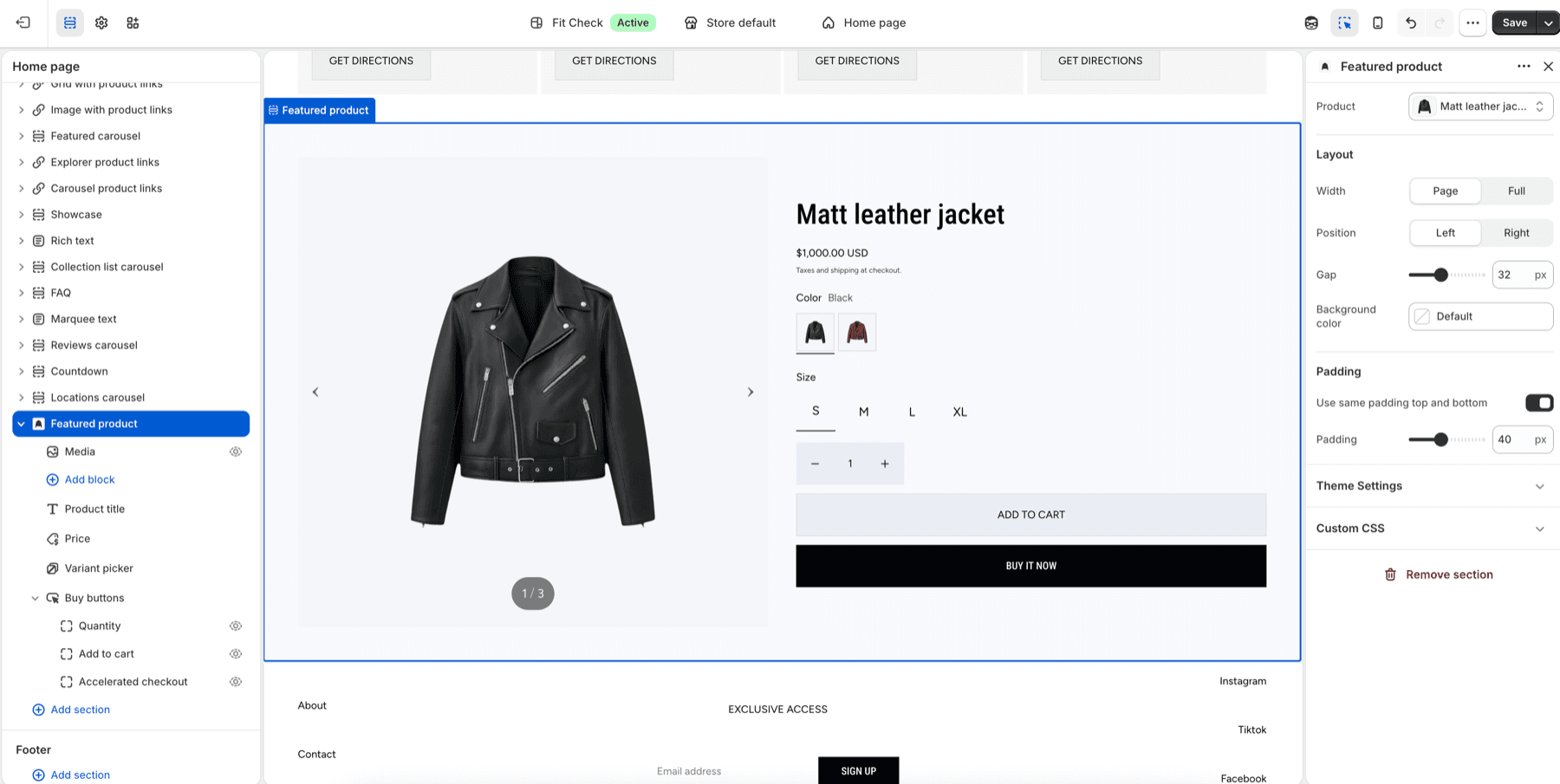
Configure the Section
- Add the sectionIn the theme editor, click Add section and select Featured product from the Products category.
- Choose the productUse the section Product setting to choose the product shown in this section.
- Review blocksKeep the default media, title, price, variant picker, quantity selector, and buy buttons unless the page needs a simpler campaign layout.
- Check variants and cartPreview at least one available variant, one unavailable variant if your product has one, and a successful add-to-cart.
- Review mobileSwitch to mobile preview and confirm media, product options, quantity, and buttons stack cleanly.
Editor Steps
- Open the page template where the focused product should appear.
- Click Add section and choose Featured product.
- In the section settings, choose the product in Product.
- Keep product form blocks in a purchase-friendly order: media, title, price, variants, quantity, selling plans where available, and buy buttons.
- Set Content width, Desktop media position, Gap, Background color, and Padding to match the surrounding page.
- Preview the selected product with available, unavailable, sale, and multi-option variants when those states exist.
Section Settings
| Setting | Description |
|---|---|
| Product | Product displayed by the section. |
| Content width | Page-width or full-width layout. |
| Desktop media position | Place media to the left or right of product details. |
| Gap | Space between media and product details. |
| Background color | Set the section background or leave blank to inherit the global page background. |
| Padding | Top and bottom section spacing. |
Default Blocks
| Block | Use |
|---|---|
| Media | Shows the selected product media gallery. |
| Product title | Displays the selected product title. |
| Product price | Shows regular, sale, unit, and selected-variant pricing where available. |
| Variant picker | Lets customers choose product options. |
| Quantity selector | Lets customers choose quantity before adding to cart. |
| Buy buttons | Adds standard and accelerated checkout actions. |
| App blocks | Adds compatible Shopify app content inside the product form area. |
Empty State
If no product is selected while editing the theme, Fit Check shows a neutral product placeholder so you can see the section layout. Select a real product before publishing the section.
Product State Checks
| State | What to confirm |
|---|---|
| No product selected | The editor placeholder is neutral and the section is not published without a real product. |
| Single variant | Add-to-cart is direct and price remains clear. |
| Multiple variants | Variant picker updates price, media, availability, and buy buttons. |
| Sold out variant | Sold-out state is visible and cannot be added to cart. |
| Selling plans | One-time and subscription options appear only when the product has active plans. |
| App blocks | App content does not crowd buy buttons or variant choices on mobile. |
Tips
- Use one Featured product section per page area so the customer has one clear purchase focus.
- Pair it with editorial sections above or below when the page needs storytelling before purchase.
- If the product has subscription plans, review the selling plan picker on the product template and in this section.
- If the global cart type is Drawer, test that add-to-cart opens or updates the drawer as expected.