Detail Explorer
A two-panel section that pairs an accordion with a synced image gallery. When a visitor opens an accordion row, the gallery switches to that row’s image. Use it to walk through product features, processes, or any content where each step has a visual.
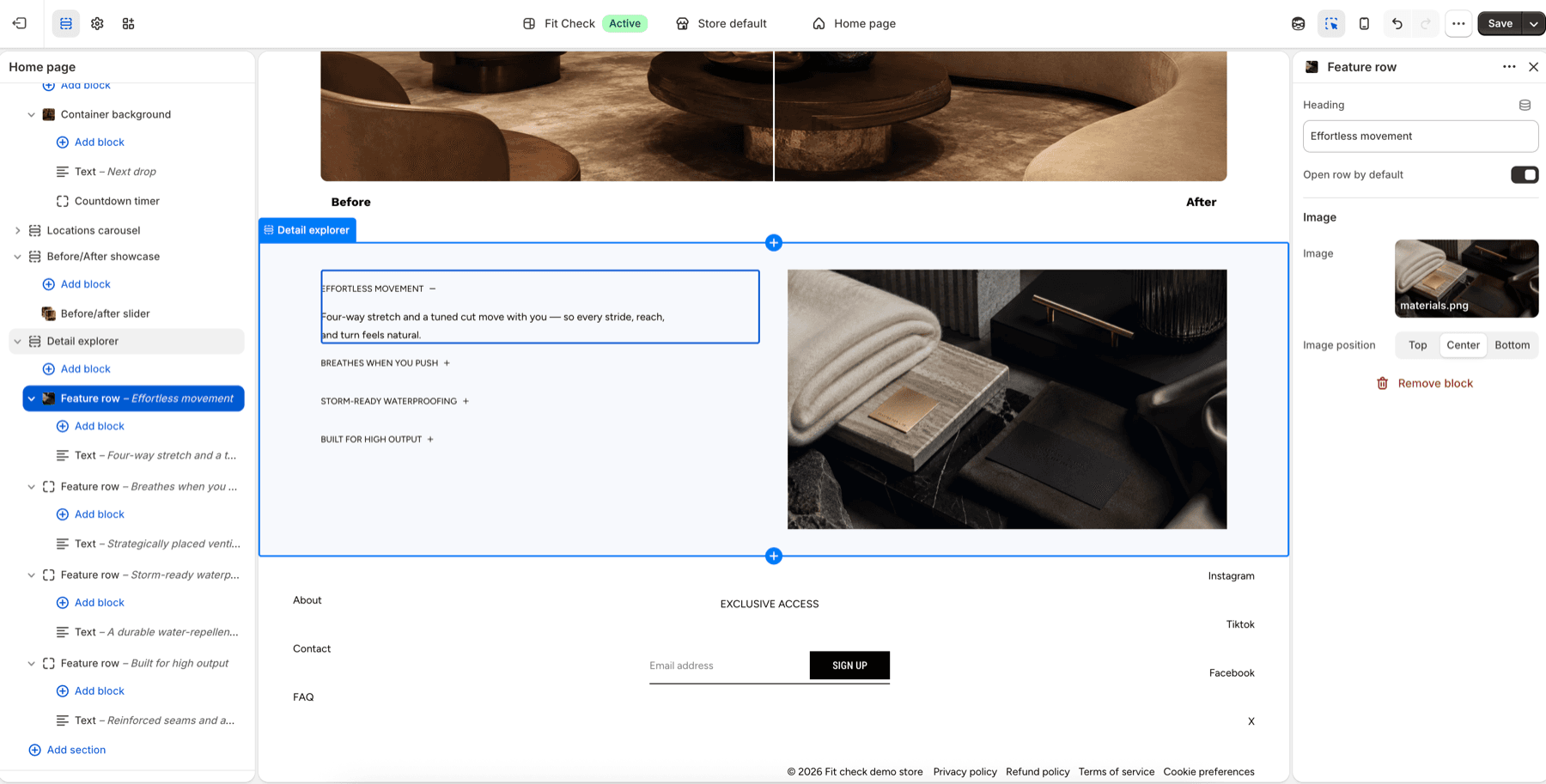
Configure the Section
- In the theme editor, click Add section.
- Select Detail explorer from the Interactive category.
- Add Feature row blocks — each row has a heading, an image, and space for child blocks (text, buttons, etc.).
Section Settings
Accordion
| Setting | Description |
|---|---|
| Icon style | Accordion toggle icon — Caret or Plus/minus. Default: Plus. |
| Auto-close other rows | When one row opens, close all others. Default: On. |
| Show dividers | Display divider lines between rows. Default: Off. |
| Place icon at end | Move the toggle icon to the right side. Default: Off. |
| Style | Typography preset for row headings — Default, H1 through H6, or Custom. Default: H6. |
Image
| Setting | Description |
|---|---|
| Image position | Gallery placement — Left or Right. Default: Right. |
| Border radius | Rounded corners on gallery images. Range: 0–32px. Default: 0. |
| Content alignment | Vertical alignment of the accordion panel — Top, Center, or Bottom. Default: Center. |
| Gap | Spacing between accordion and gallery. Range: 0–100px. Default: 32px. |
Layout
| Setting | Description |
|---|---|
| Width | Page width, Full width, or Custom (60–100%). Default: Page width. |
| Height | Auto, Full screen, or Custom (small/medium/large/custom input). Default: Auto. |
| Background color | Optional section background color. Leave Default to use the theme surface. |
| Padding | Use one all-sides value or set top, bottom, left, and right independently. Range: 0–100px. Default: 32px unified; 0px left/right in split mode. |
Row Block Settings
Each Feature row block supports the following:
| Setting | Description |
|---|---|
| Heading | Text displayed in the accordion summary. |
| Open by default | Whether this row starts expanded. Default: Off. |
| Image | The image shown in the gallery when this row is open. |
| Image position | Crop focus for the row image — Top, Center, or Bottom. Default: Center. |
Child Blocks
Each row accepts child blocks for its expanded content:
- Text — Rich text with full styling options.
- Button — Call-to-action link.
- Image with product links — Image with shoppable product badges.
- Video with product links — Video with shoppable product badges.
- Custom Liquid — Inline Liquid code.
- App blocks — Third-party app content.
Responsive Behavior
On screens narrower than 750px, the section switches to a mobile carousel experience:
- The desktop two-panel layout is replaced by a full-width swipeable carousel.
- Each slide shows the row’s image with a counter badge (e.g., “1/4”) in the top-right corner.
- Below the carousel, dot indicators show the current position (Instagram-style, no background pill).
- The active row’s heading and text content appears beneath the dots, synced to the current slide.
- Swiping between slides cross-fades the text content with a smooth transition.