Shopify Search & Discovery
Use Shopify Search & Discovery to configure the filters behind Fit Check collection/search pages and choose the products behind Fit Check’s Recommended products and Complementary products sections on product pages.
Fit Check uses Shopify’s filter and recommendation data, then renders the returned products with the same product-card block system used on collection, search, featured, and carousel surfaces.
Setup Order
- Open Search & DiscoveryIn Shopify admin, search for the Search & Discovery app or open it from Apps.
- Configure filtersUse Filters to choose collection and search result filter sources, labels, grouped values, visual values, and logic.
- Choose a source productOpen Product recommendations, then add or edit recommendations for the product page that should show the section.
- Select complementary productsChoose add-on products that pair with the source product. These must be set manually in Search & Discovery.
- Review related productsUse Shopify auto-generated related products, add manual related products, or combine manual products with auto-generated results.
- Check the theme sectionsUse collection/search filter panels for filters, Recommended products for related products, and Complementary products for add-on products.
- Preview real productsTest products with assigned recommendations, products with only auto-generated related items, and products with no returned products.
Terminology Map
| Shopify Search & Discovery | Fit Check theme editor | Storefront intent |
|---|---|---|
| Filters | Collection and Search grid filter panels | Customer-facing filter groups on collection pages and search results. |
| Product recommendations | Recommendation setup workflow | The app page where you customize recommendations for each product. |
| Related products | Recommended products section | Similar products or substitutes for the current product. |
| Complementary products | Complementary products section | Add-on products that pair with the current product. |
The naming difference is intentional: Shopify calls the app workflow Product recommendations, while Fit Check labels the visible related-products section Recommended products in the theme editor.
Open The App
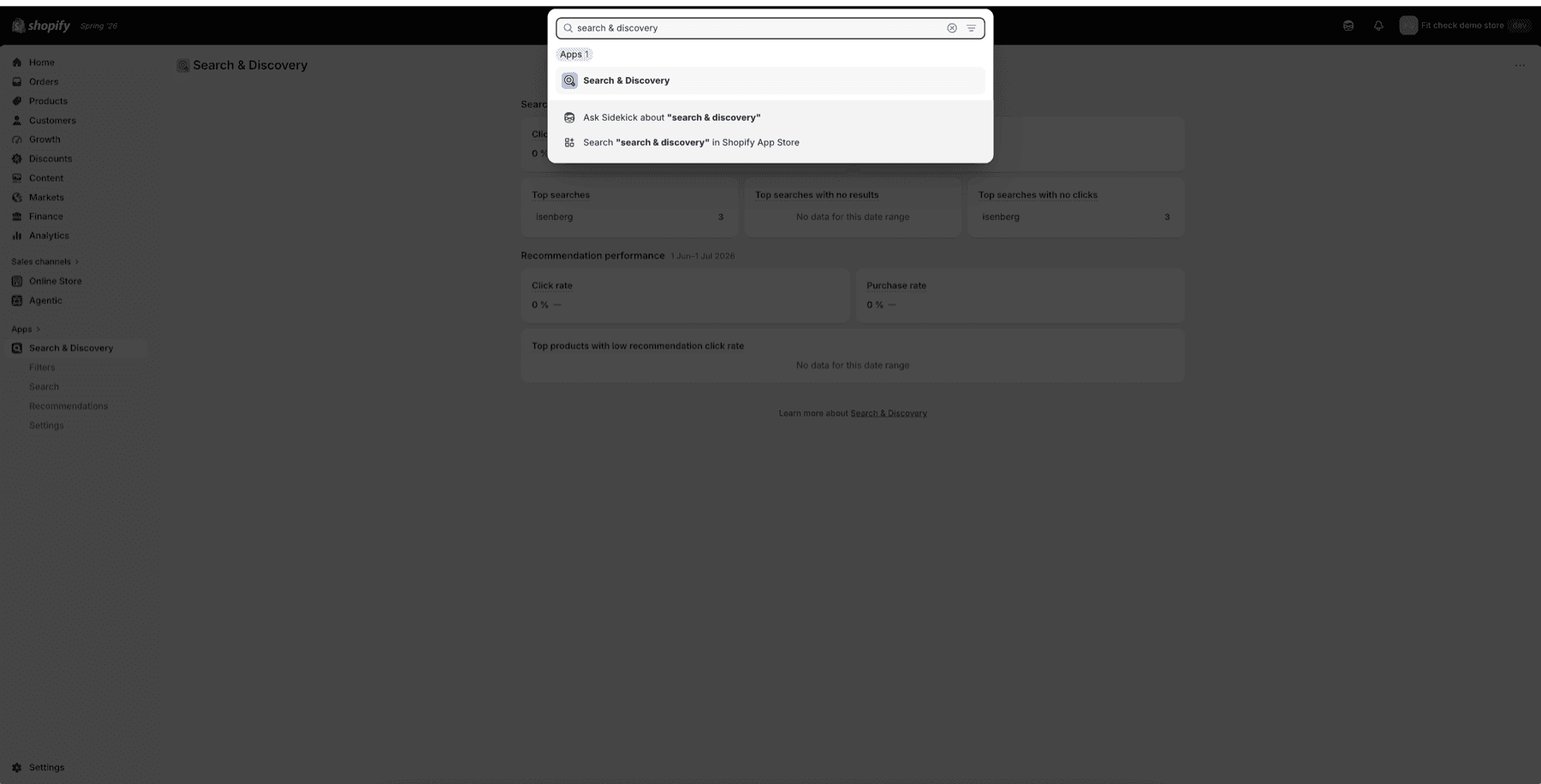
In Shopify admin, use the global search field to find Search & Discovery, or open it from Apps in the sidebar.
Configure Filters
Open Filters in Search & Discovery when you want collection pages and Search grid results to expose customer-facing filter groups.
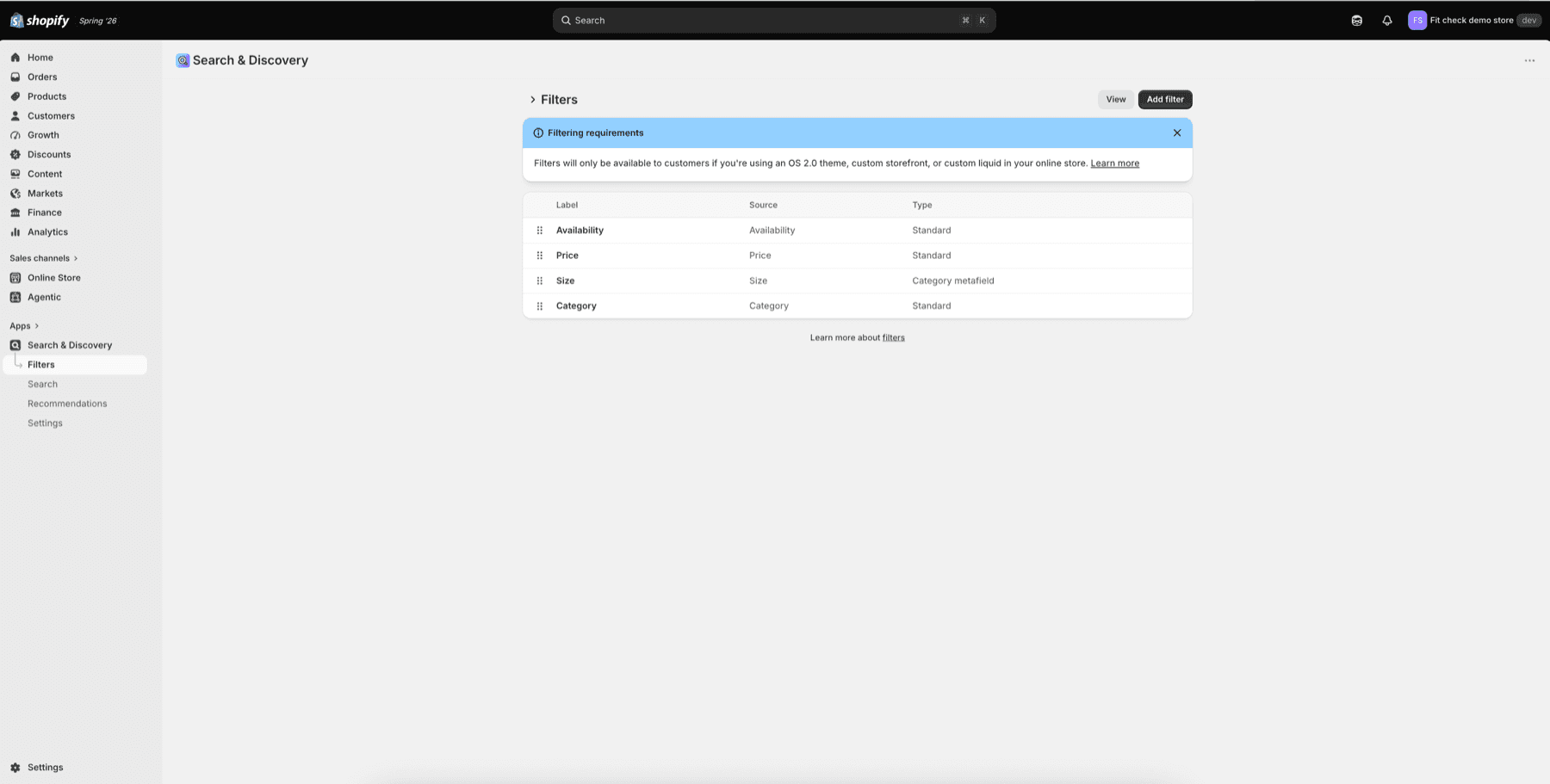
Use this checklist before editing Fit Check filter styling:
| Filter decision | What to check |
|---|---|
| Source | Choose a standard filter, product option, product metafield, category metafield, variant metafield, or metaobject-backed source. |
| Label | Set the customer-facing name, such as Color, Size, Price, or Availability. |
| Values | Confirm the values exist on products in the collection or search result being tested. |
| Grouping | Group similar values when customers should see one clean value instead of many source values. |
| Visuals | Use visual filters when the source supports swatches or images. |
| Logic | Keep OR logic for values where customers can broaden results, or use AND logic where every selected value must match. |
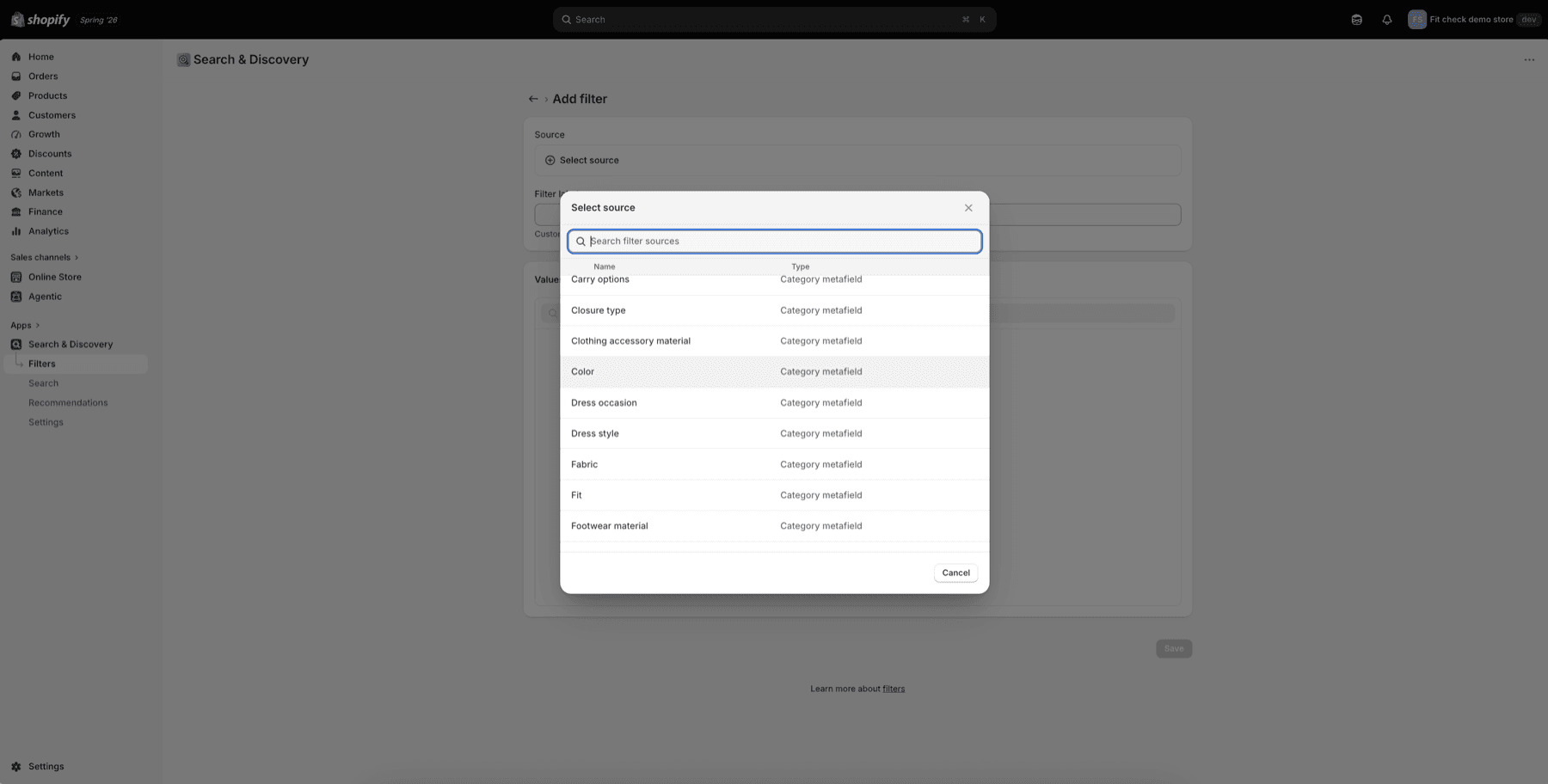
When adding a filter, select the source first. The available sources come from product data and Shopify definitions.
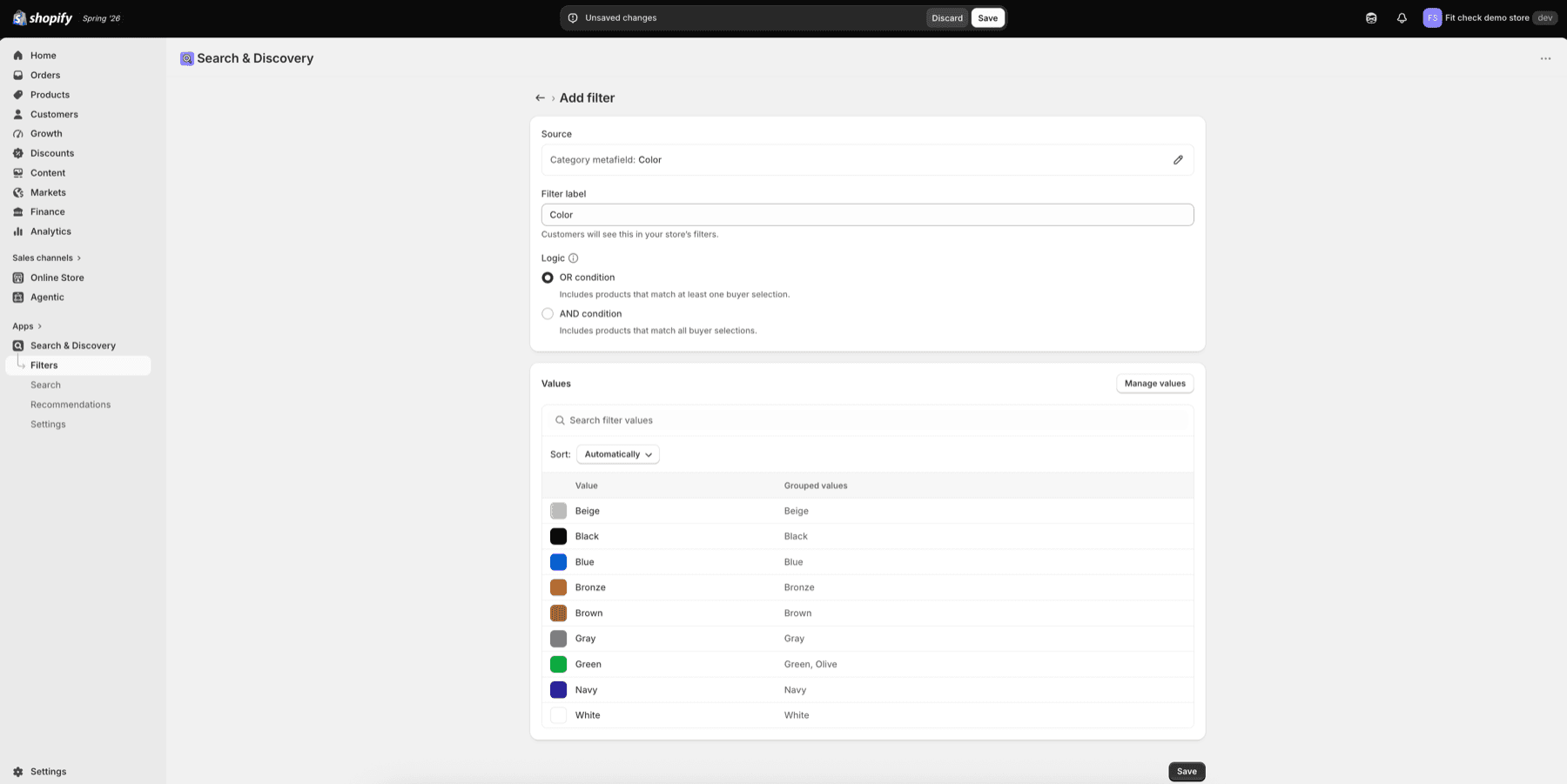
After a source is selected, review the label, logic, values, grouping, and visual output.
Preview Fit Check Filters
In the theme editor, preview a collection or Search grid route that has products matching the configured filters. Open the filter panel and test applying, clearing, and combining filters.
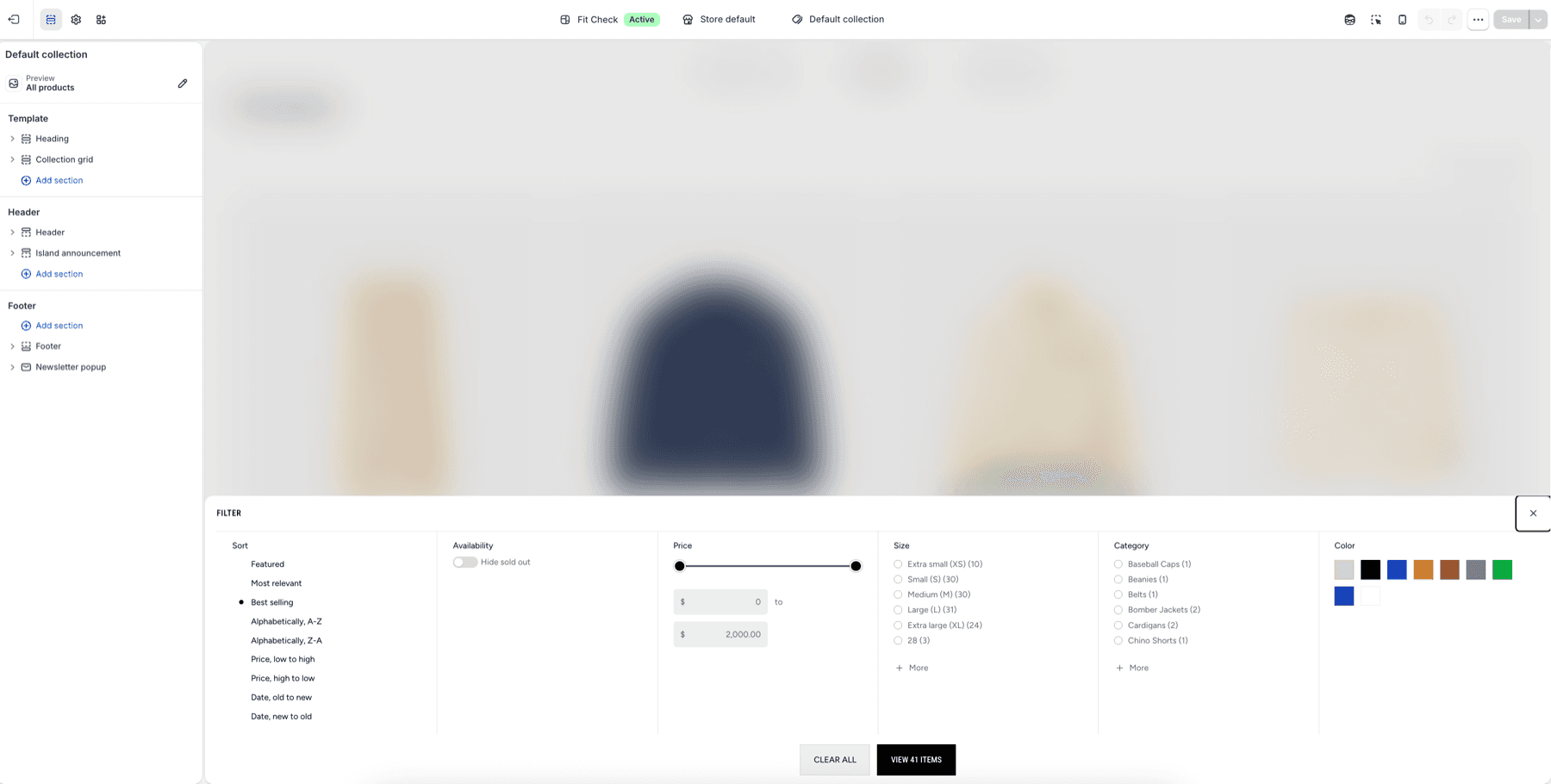
If a filter does not appear, check the Search & Discovery source and the current product set before changing the theme. Shopify only returns filters that apply to the products in the collection or search result.
Open Product Recommendations
Inside Search & Discovery, open Recommendations. The Product recommendations page lists source products, any assigned complementary products, and related products.
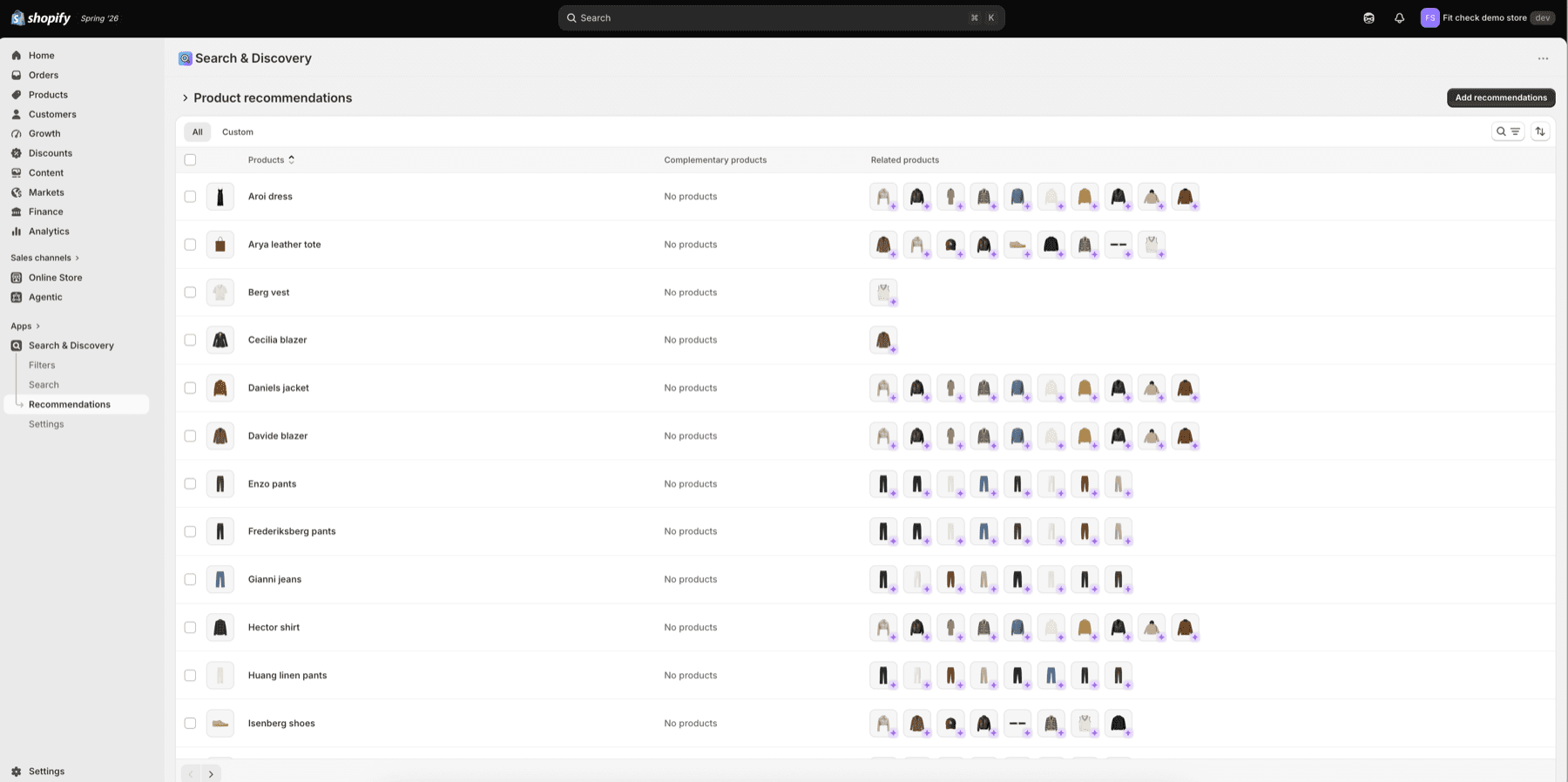
Use this page to:
- Click Add recommendations for a product that has not been customized yet.
- Open an existing product row when you need to change its recommendations.
- Use the Custom tab when you only want products with manually edited recommendations.
- Confirm which products currently have no complementary products assigned.
Edit One Product
After you choose a source product, Search & Discovery shows two recommendation groups:
| Area | What it controls |
|---|---|
| Edit complementary products | Products that could be bought in addition to the source product. These feed Fit Check’s Complementary products section. |
| Edit related products | Similar products or alternatives. These feed Fit Check’s Recommended products section. |
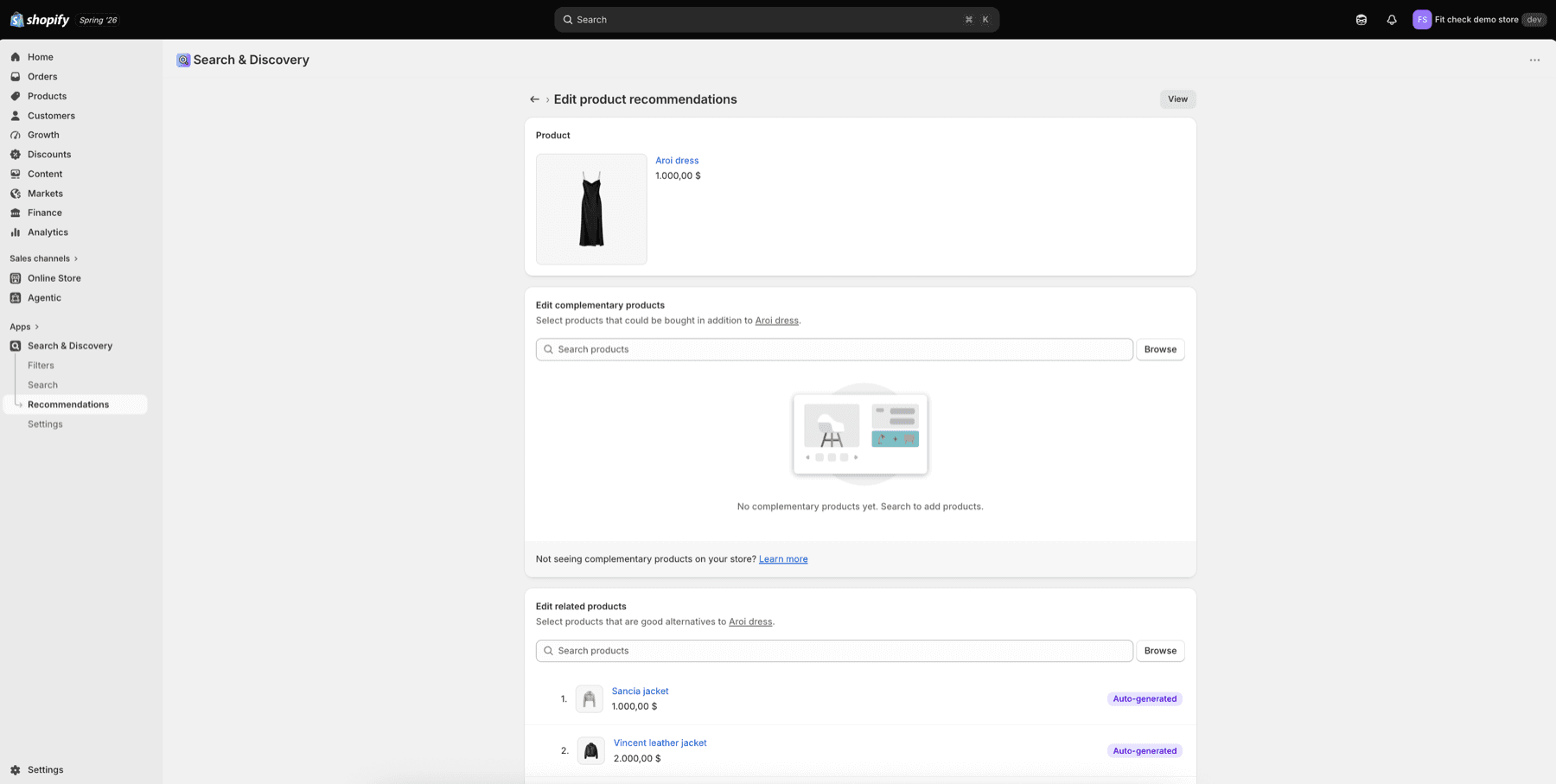
Shopify can auto-generate related products from product data, purchase behavior, and collection relationships. You can also add manual related products and decide whether they appear ahead of auto-generated products or replace them.
Complementary products are manual add-on choices. Choose products customers would naturally buy with the source product.
Add Products
Use Search products or Browse to choose products for either group. The modal lets you select products, then add them back to the recommendation group.
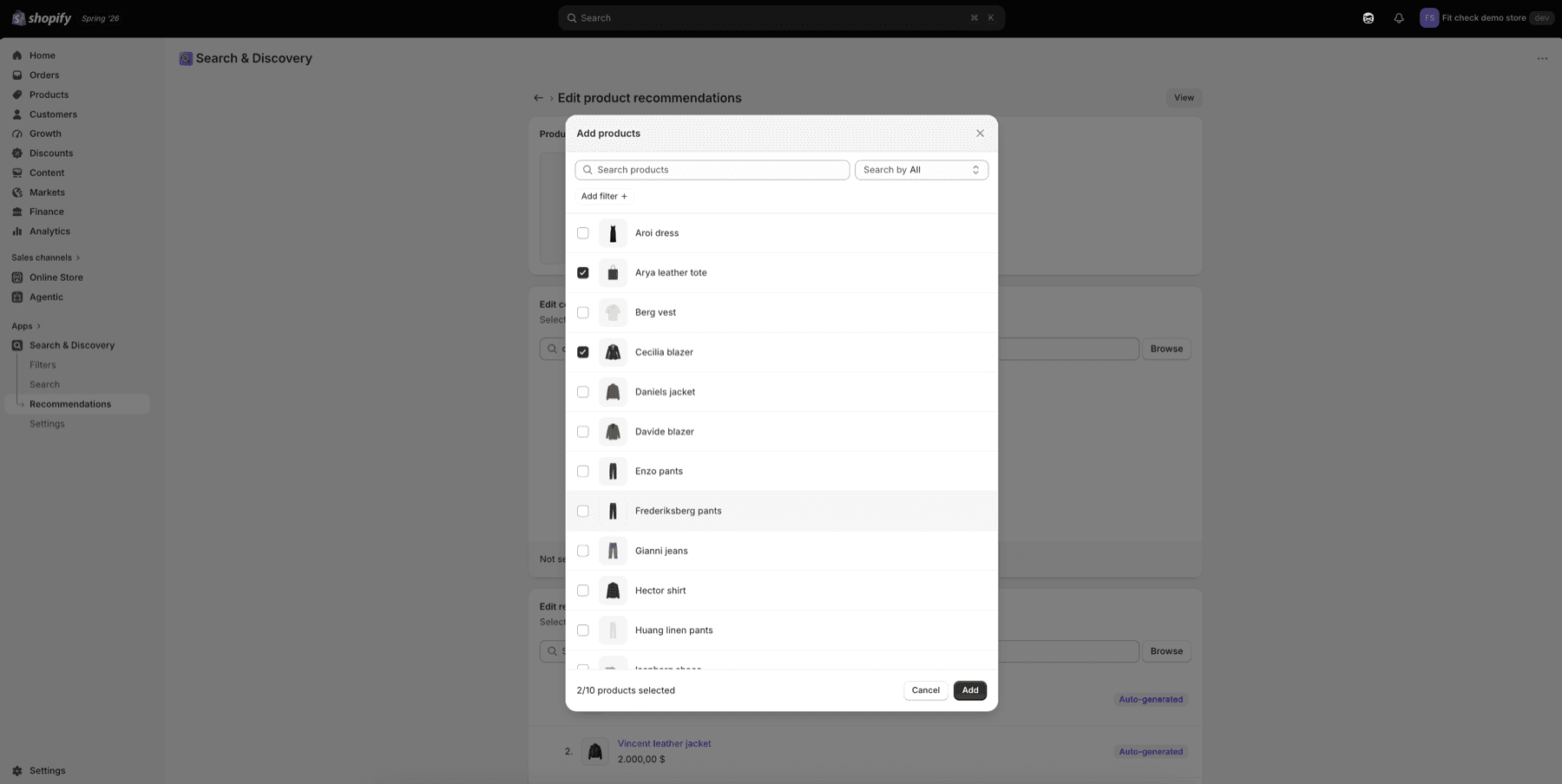
Use different product logic for each group:
| Group | Good choices |
|---|---|
| Complementary products | Accessories, add-ons, matching pieces, care products, or lower-cost items that complete the purchase. |
| Related products | Similar silhouettes, alternate colors, nearby price points, substitutes, or products from the same buying context. |
Review The Fit Check Sections
Open the Product template in the theme editor and preview the same source product.
Recommended Products
The Recommended products section uses Shopify related-product recommendations. It is included on the default Product template and stays hidden when Shopify returns no related products.
Use Product Recommendations for section settings such as product count, desktop columns, mobile card size, carousel navigation, width, gaps, background, padding, and product-card blocks.
Complementary Products
The Complementary products section uses Shopify complementary-product recommendations. Add this section to product templates where the store needs a dedicated cross-sell surface.
Use Complementary products for section settings such as product count, columns, mobile card size, carousel navigation, width, gaps, background, padding, and product-card blocks.
Product Cards
Both sections use Product item blocks. Review media, title, price, swatches, quick add, badges, and spacing the same way you would on collection and search product cards.
Use Product-card blocks when you need the card-level settings behind recommendation products.
Publish Checklist
| Check | Why it matters |
|---|---|
| Source product | Preview the exact product whose recommendations were edited in Search & Discovery. |
| Complementary data | Confirm manually selected complementary products appear in the Complementary products section. |
| Related data | Confirm manual and/or auto-generated related products appear in the Recommended products section. |
| Product eligibility | Recommended products need to be active, published to Online Store, priced above zero, not gift cards, not unlisted, and not already in the visitor’s cart. |
| Inventory | Complementary products must be in stock to display. Related products can still display with continue-selling behavior when Shopify allows it. |
| Product count | Fit Check sections can request 1-10 products, but Shopify only displays products that pass recommendation and eligibility rules. |
| Card content | Test sale prices, long product titles, variant swatches, quick add, and missing media. |
| Empty state | Preview a product with no returned recommendations so the section remains out of the way. |
| Mobile | Confirm carousel controls, product-card width, and quick-add controls are usable on mobile. |
Troubleshooting
| Symptom | Check |
|---|---|
| Complementary section is empty | Confirm complementary products were manually assigned for the source product and are active, published, priced above zero, in stock, and not gift cards. |
| Recommended products differ from the app preview | Shopify auto-generated related recommendations can change over time and the storefront can differ from the Search & Discovery preview. |
| Products were added but not visible | Check section product count, product eligibility, inventory, Online Store publication, and whether the product is already in the cart. |
| Wrong section updated | Use Recommended products for related products and Complementary products for add-on products. |
| Product cards look incomplete | Review Product item blocks for media, title, price, swatches, quick add, and spacing. |
Shopify Behavior
Shopify Search & Discovery creates filters that compatible themes can display on collection pages and search results. Shopify supports standard filters and custom filters based on product options, metafields, metaobjects, category metafields, and variant metafields. Filters only display when they apply to the current product set.
Shopify Search & Discovery also customizes product recommendations that compatible themes display on product pages. Shopify supports complementary and related recommendation types. Related products can be auto-generated and optionally combined with manually selected products. Complementary products are manually selected add-ons.
Fit Check reads Shopify recommendation results through Shopify’s Product Recommendations and Section Rendering APIs. The Recommended products section requests intent=related; the Complementary products section requests intent=complementary.
References:
- Shopify Search & Discovery filters
- Customize product recommendations with Shopify Search & Discovery
- Product Recommendations API reference
- Liquid recommendations object