Before/After Showcase
Show an interactive comparison between two images. Use it for styling changes, material comparisons, product transformations, or editorial before/after storytelling.
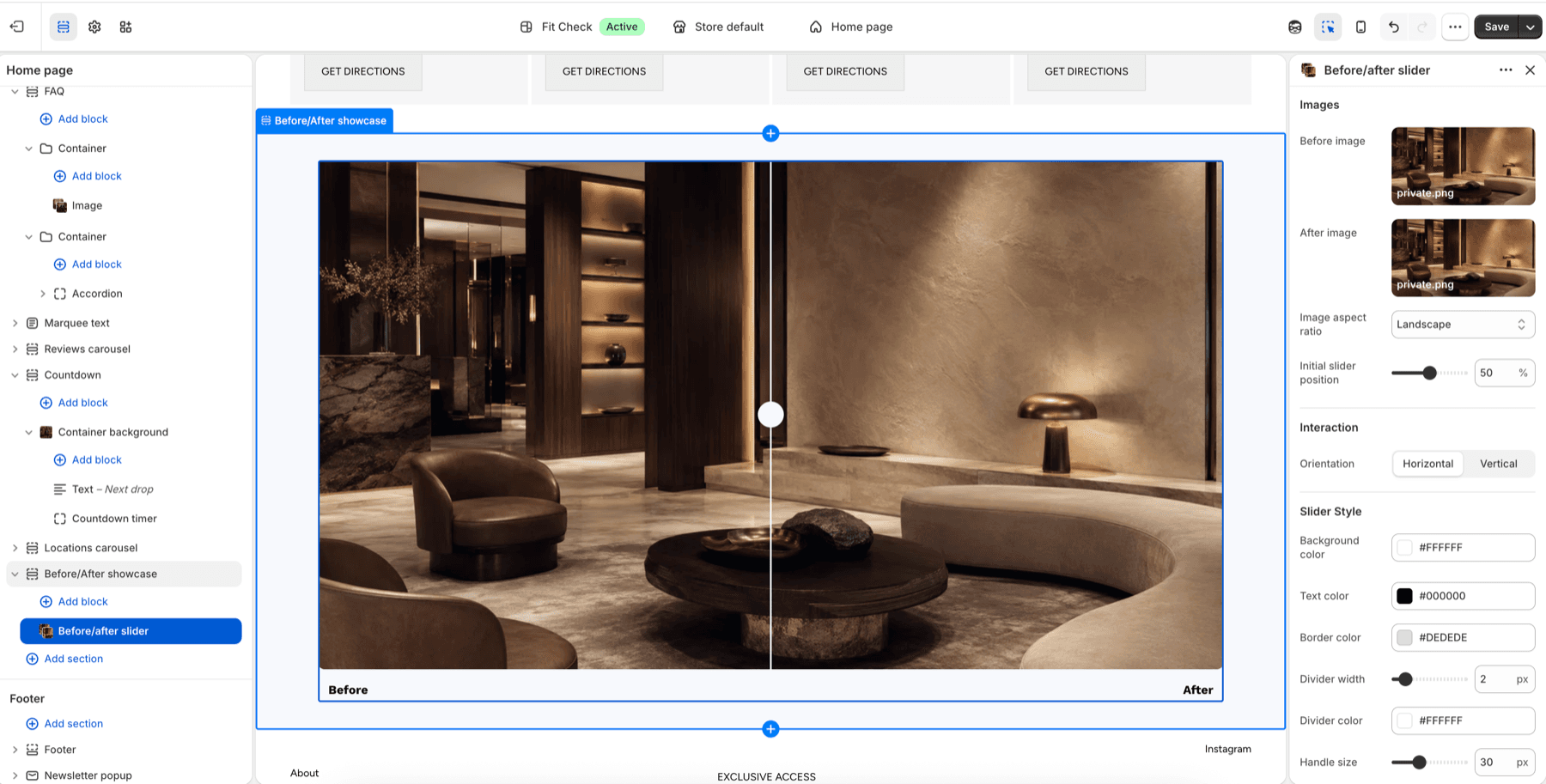
Configure the Section
- In the theme editor, click Add section.
- Select Before/After showcase.
- Add a Before/after slider block.
- Choose the before and after images, then tune the slider position and labels.
Section Settings
| Setting | Description |
|---|---|
| Width | Choose Page, Full screen, or Custom width. Custom width ranges from 60-100%. |
| Height | Choose Auto, Full screen, or Custom. Custom height uses Small, Medium, Large, or a custom percentage. |
| Direction | Stack blocks vertically or arrange them horizontally. Default: Vertical. |
| Vertical on mobile | Stack horizontal layouts on mobile. |
| Alignment | Control horizontal alignment for the active direction. |
| Position | Control vertical placement for the active direction. |
| Gap | Space between comparison blocks. Range: 0-100px. Default: 12px. |
| Background color | Optional section background color. Leave Default to use the theme surface. |
| Padding | Use one all-sides value or separate Top, Bottom, Left, and Right values. Default: 32px unified; 0px left/right in split mode. |
Before/After Slider Block
The Before/after slider block owns the images, drag handle, labels, and comparison orientation.
| Setting | Description |
|---|---|
| Before image / After image | Upload the two images used in the comparison. |
| Image aspect ratio | Choose Auto, Portrait, Square, or Landscape. |
| Initial slider position | Starting split position from 0-100%. Default: 50%. |
| Orientation | Drag horizontally or vertically. Default: Horizontal. |
| Background color / Text color / Border color | Base colors for the block and labels. |
| Divider width / Divider color | Control the comparison divider line. |
| Handle size / Handle color | Control the draggable handle. |
| Border radius | Round the image viewport. |
| Show labels | Show or hide before/after labels. |
| Label position | Place labels outside or inside the image, including custom inside positions. |
| Before label / After label | Customize the comparison labels. |
| Style | Control label typography, including custom font, size, and weight. |
Gallery Mode
Enable gallery mode to display multiple before/after comparisons in a grid or carousel.
| Setting | Description |
|---|---|
| Enable gallery | Toggle gallery display. Default: Off. |
| Layout | Choose Grid or Carousel. Default: Grid. |
| Columns | Desktop columns in gallery mode. Range: 1-6. Default: 4. |
| Columns on mobile | Mobile columns in gallery mode. Range: 1-3. Default: 1. |
| Max items | Maximum comparisons to display. Range: 1-24. Default: 16. |
Carousel Navigation
When gallery mode is set to carousel, these settings control the navigation arrows.
| Setting | Description |
|---|---|
| Icon | Choose Chevrons, Custom, or None. Default: Chevrons. |
| Custom icon | Upload a custom arrow icon when Icon is Custom. |
| Icon size | Arrow icon size. Range: 12-48px. Default: 20px. |
| Icon background | Choose None or Circle. Default: None. |
| Icon color | Arrow icon color. |
| Icon background color | Arrow background color when a background shape is enabled. |