Size Guide
Use this guide to create product-specific size charts that appear inside the Product template Size guide drawer. Fit Check reads a Shopify Size Chart metaobject through the product metafield custom.size_chart, then the Size guide table block renders the assigned chart with an inches/centimeters toggle.
Use one Product template when the product page layout stays the same. Create different Size Chart entries for jeans, tops, shoes, accessories, or individual products.
Setup Order
- Create the Size Chart definitionIn Shopify admin, create a Size Chart metaobject with the exact fields Fit Check reads.
- Create chart entriesAdd one entry per sizing system or product-specific chart, using pipe-separated headers and rows.
- Connect productsCreate the Product metafield custom.size_chart and select the matching Size Chart entry on each product.
- Enable the theme blockIn the theme editor, set Size guide data source to Product size chart metaobject on the Size guide table block.
- Preview the drawerOpen the Size guide drawer on a product page and check the source table, converted table, and mobile layout.
Create the Size Chart Definition
In Shopify admin, go to Settings > Custom data > Metaobjects and create a metaobject definition named Size Chart.
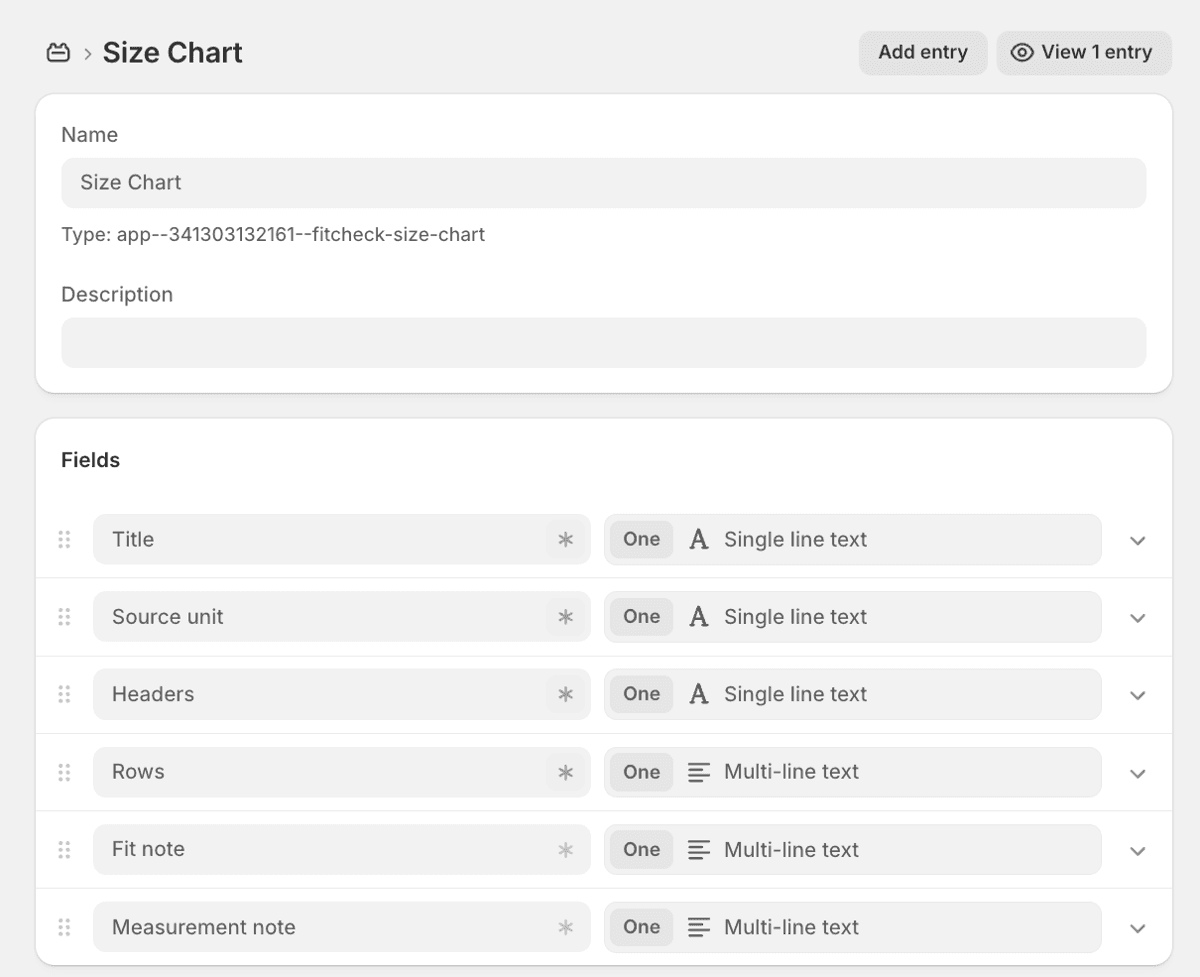
Add these fields:
| Field name | Field key | Type | Required | What it controls |
|---|---|---|---|---|
| Title | title | Single line text | Yes | Chart title shown in the Size guide drawer. |
| Source unit | source_unit | Single line text | Yes | Use inches or centimeters. |
| Headers | headers | Single line text | Yes | Pipe-separated column labels, without units. |
| Rows | rows | Multi-line text | Yes | One pipe-separated row per line. |
| Fit note | fit_note | Multi-line text | No | Optional fit guidance below the table. |
| Measurement note | measurement_note | Multi-line text | No | Optional measuring guidance below the table. |
Use Title as the display name field when Shopify asks which field should identify entries. If Shopify shows a generated type under the metaobject name, you do not need to copy that value into Fit Check.
Enter Chart Content
Create a Size Chart entry for each chart your products need. Keep headers without units because Fit Check adds (in) or (cm) based on the selected unit.
Example:
| Field | Example value |
|---|---|
| Title | Jeans size chart |
| Source unit | centimeters |
| Headers | `Size |
| Rows | `24 |
| Fit note | Runs true to size. |
| Measurement note | Measurements are body measurements in centimeters. |
Rows must use the same number of values as the headers. The first column is the size label and is not converted. The remaining columns are measurement values.
Connect Products
In Shopify admin, go to Settings > Custom data > Products and create a Product metafield:
| Setting | Value |
|---|---|
| Name | Size chart |
| Namespace and key | custom.size_chart |
| Type | Metaobject reference |
| Reference | Size Chart |
Open a product, find the Size chart metafield, and select the matching entry.
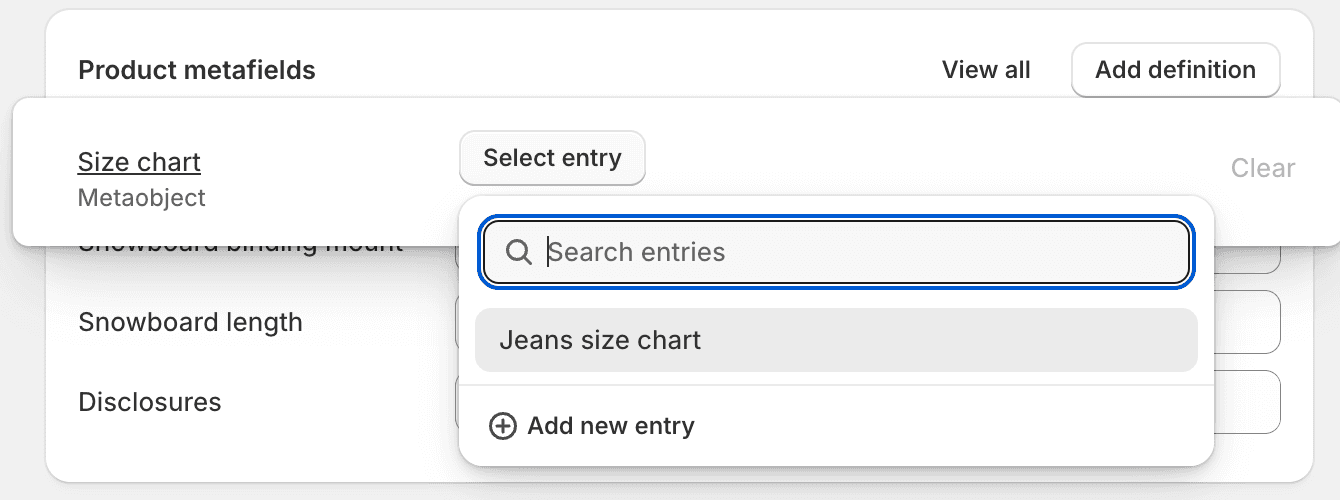
Use different entries for different product groups:
| Product type | Suggested entry |
|---|---|
| Jeans | Jeans size chart |
| T-shirts, shirts, jackets | Tops size chart or a more specific tops chart |
| Shoes | A shoe-size chart entry |
| One-off product | A product-specific chart entry |
Enable the Theme Editor Block
In the theme editor:
- Open the Product template that contains the Product details section.
- Open the Size guide drawer link.
- Select the Size guide table block.
- Change Size guide data source from Manual to Product size chart metaobject.
- Choose what happens when a product has no chart:
- Show manual table keeps the block’s fallback table visible.
- Hide size guide hides the table when no product chart is assigned.
- Save the theme.
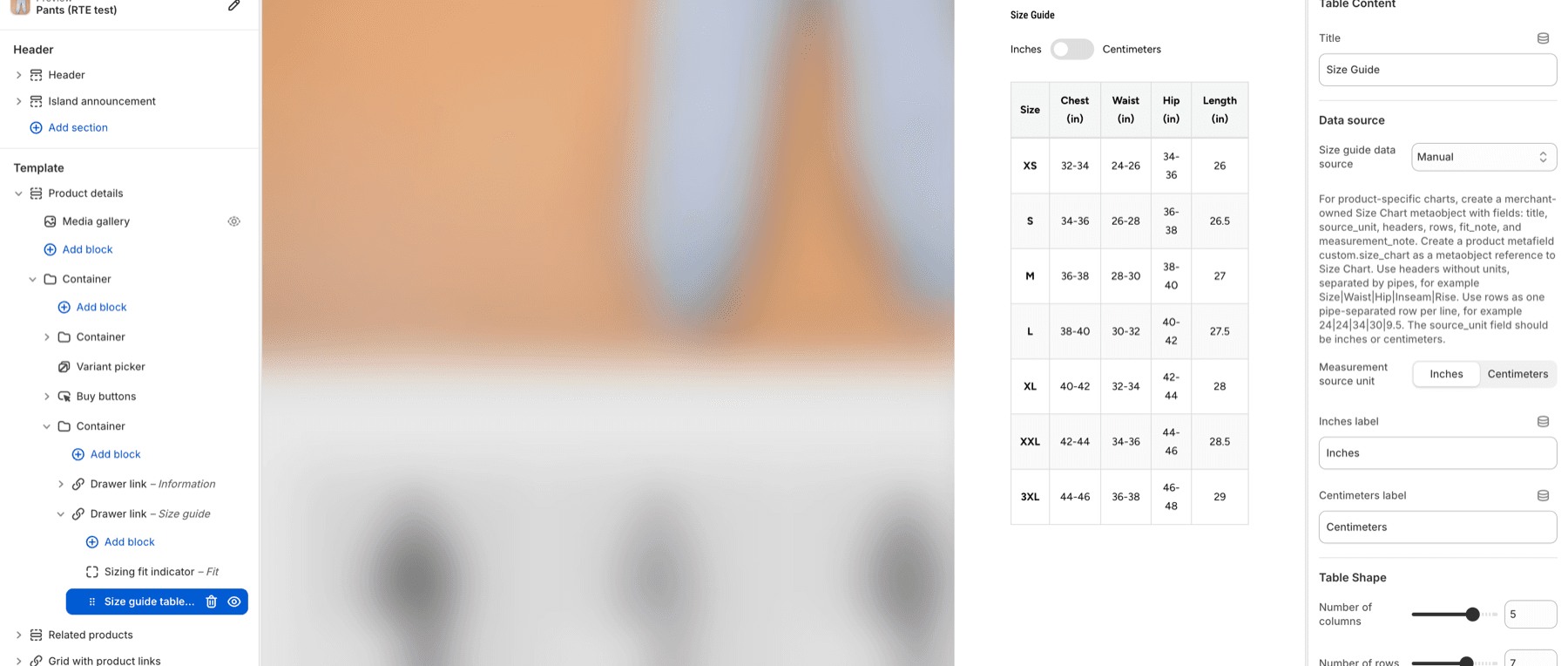
The default Product template can keep a manual fallback table. Once a product has a custom.size_chart value and the block uses Product size chart metaobject, the product’s Size Chart entry controls the rendered table.
Unit Conversion
Fit Check reads source_unit from the Size Chart entry:
| Source unit | First table | Toggle table |
|---|---|---|
inches | Inches | Centimeters |
centimeters | Centimeters | Inches |
Number ranges are supported, including 32-34, 32–34, and 32 to 34. Use measurement values in the measurement columns and keep text labels in the first column.
Publish Checklist
| State | What to confirm |
|---|---|
| Metaobject definition | The field keys are exactly title, source_unit, headers, rows, fit_note, and measurement_note. |
| Product metafield | The metafield is custom.size_chart and references the Size Chart metaobject. |
| Product assignment | At least one product has a Size Chart entry selected. |
| Theme editor | The Size guide table block uses Product size chart metaobject. |
| Fallback behavior | Products without a chart either show the manual table or hide the size guide, depending on the block setting. |
| Storefront drawer | The Size guide drawer opens, the table headings are readable, and the unit toggle converts values correctly. |