Multicolumn image/text
Arrange images, text, buttons, and containers in a flexible multicolumn layout. Use this section for feature grids, image-text pairings, comparison layouts, or any content that benefits from a row or column structure.
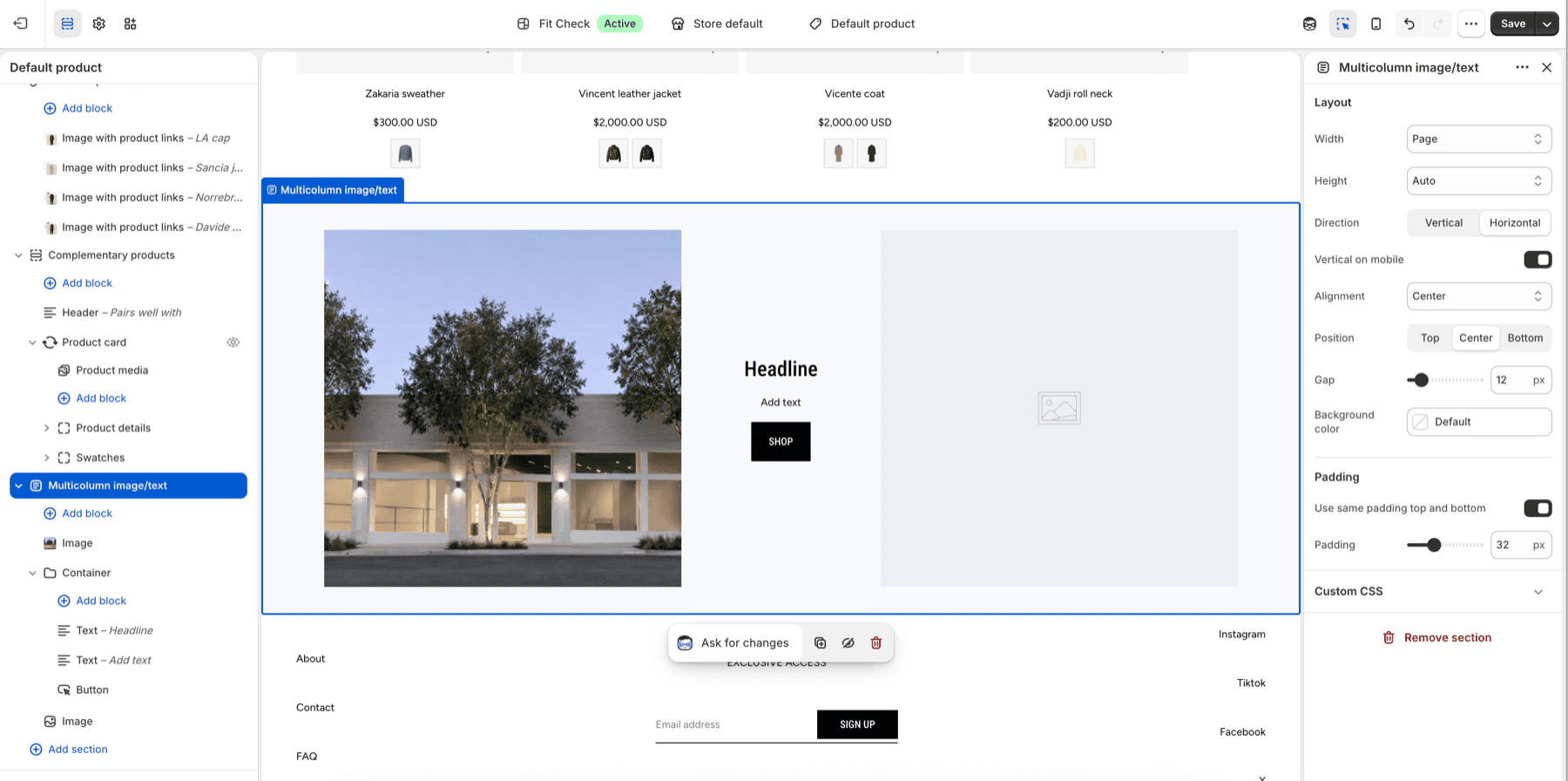
Configure the Section
- In the theme editor, click Add section.
- Select Multicolumn image/text.
- Add blocks (images, text, buttons, containers) to build your layout.
Section Settings
| Setting | Description |
|---|---|
| Section width | Page width, Full width, or Custom (60–100%). Default: Page width. |
| Section height | Auto, Full screen, or Custom. Default: Auto. |
| Direction | Vertical (stacked) or Horizontal (side by side). Default: Horizontal. |
| Vertical on mobile | Collapse horizontal layout to vertical on mobile. Default: On. |
| Alignment | Left, Center, Right, or Space between for horizontal layouts. Default: Center. |
| Position | Top, Center, or Bottom for horizontal layouts. Default: Center. |
| Content gap | Spacing between blocks. Range: 0–100px. Default: 12px. |
| Background color | Optional section background color. Leave Default to use the theme surface. |
| Padding | Use one all-sides value or set top, bottom, left, and right independently. Range: 0–100px. |
Blocks
| Block | Description |
|---|---|
| Image | Add an image to a column. |
| Text | Add heading or body text. |
| Button | Add a call-to-action button. |
| Container | Group multiple blocks together in a sub-layout. |
| Divider | Add a visual separator between blocks. |
| App blocks | Third-party app content. |