Search page
The Search page section controls the /search template. In Search mode, visitors type into an input field and see results appear as conversation-like cards. It includes an idle state with popular search suggestions and a results state with paginated product, article, page, and collection cards.
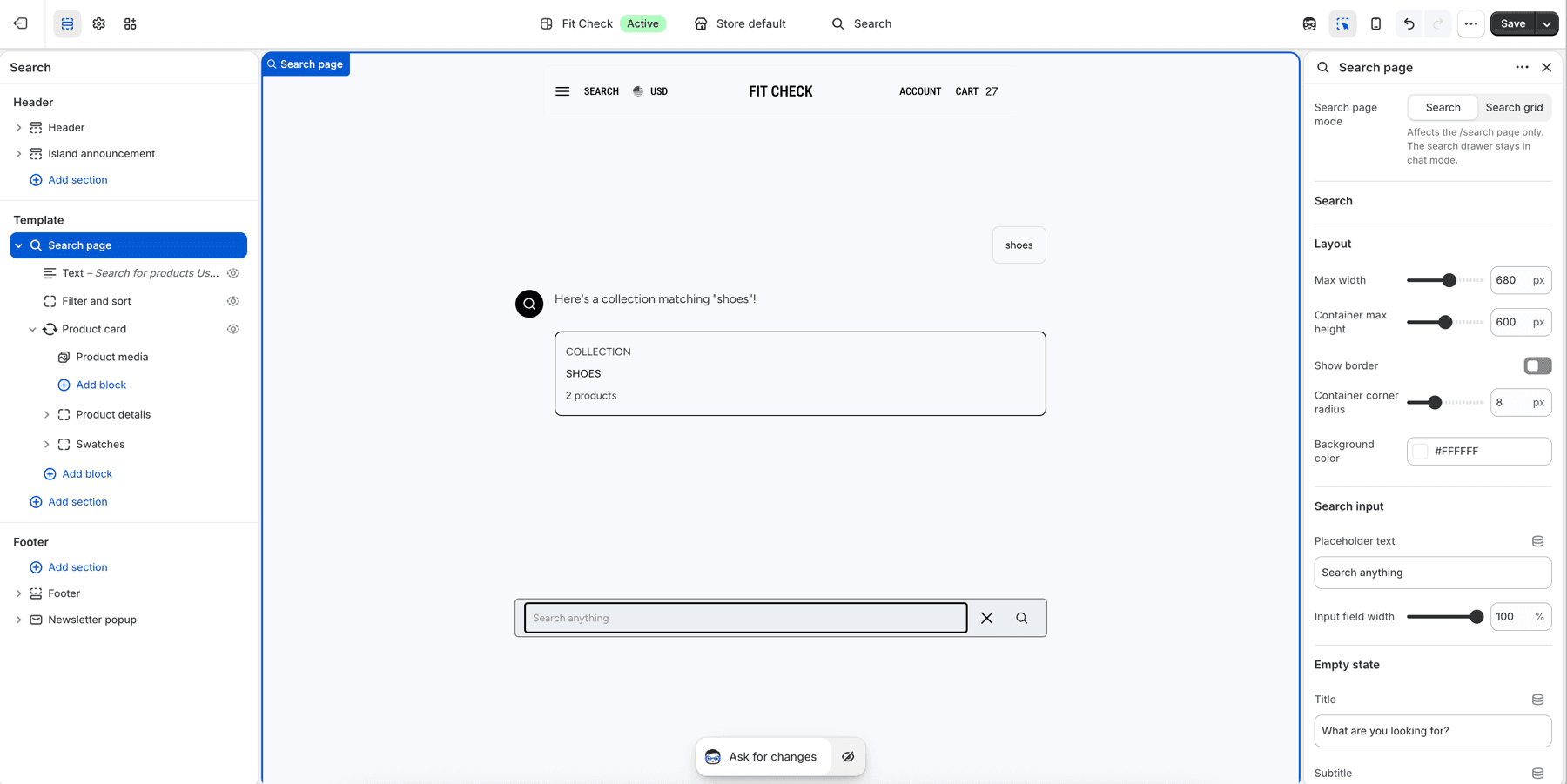
Configure the Section
This section is used on the Search template. It is already included by default - no manual setup needed.
To customize it, navigate to the Search page in the theme editor and click the Search page section.
- Choose search behaviorIn Theme settings > Search, choose whether the header search opens the drawer or routes customers to the search page.
- Choose page modeUse Search for a conversational page or Search grid for a traditional search results page.
- Set result scopeEnable or disable products, articles, pages, and collections based on what your store should return.
- Test the flowSearch from the header drawer, submit a search page query, open a product, use quick add where available, and confirm cart feedback.
Section Settings
Set Search page mode to Search for this experience. Switch to Search grid when the search page should use product-grid results instead.
Layout
| Setting | Description |
|---|---|
| Max width | Maximum width of the chat container. Range: 400–900px. Default: 680px. |
| Container max height | Maximum height of the results area. Range: 400–800px. Default: 600px. |
| Show border | Display a border around the chat container. Default: Off. |
| Container corner radius | Rounded corners on the container. Range: 0–24px. Default: 8px. |
| Background color | Set the section background or leave blank to inherit the global page background. |
Search Input
| Setting | Description |
|---|---|
| Placeholder text | Text shown in the empty input field. Default: “Search anything” |
| Input field width | Width of the input relative to the container. Range: 50–100%. Default: 100%. |
Empty State
| Setting | Description |
|---|---|
| Title | Heading shown before any search. Default: “What are you looking for?” |
| Subtitle | Optional subtitle below the title. |
| Popular searches | Comma-separated list of suggested searches shown as pills. Default: “New arrivals, Sale, Best sellers”. |
| Title style | Typography preset for the title — H1 through H6. Default: H2. |
| Subtitle font size | Size of the subtitle text. Range: 12–24px. Default: 16px. |
Card Styling
| Setting | Description |
|---|---|
| Border radius | Rounded corners on result cards. Range: 0–20px. Default: 8px. |
| Animation style | How results appear — Slide up, Fade, or None. Default: Slide up. |
Chat Bubble
| Setting | Description |
|---|---|
| Query bubble colors | Direct background, text, and border colors for the search query bubble. |
| Use custom colors | Override the scheme with custom background and text colors. Default: Off. |
| Background | Custom bubble background color. Default: #f6f6f6. |
| Text color | Custom bubble text color. Default: #1a1a1a. |
Pills
| Setting | Description |
|---|---|
| Override pill styling | Use custom colors for popular search pills. Default: Off. |
| Background color | Custom pill background. Default: #F5F5F5. |
| Text color | Custom pill text. Default: #000000. |
| Show border | Add a border to pills. Default: Off. |
| Border color | Custom pill border color. Default: #000000. |
Padding
| Setting | Description |
|---|---|
| Padding | Top, bottom, left, and right padding. Range: 0–100px. Default: 36px. |
How It Works
- Idle state: The section shows a centered title, optional subtitle, and popular search pills. The input field sits at the bottom.
- Search performed: After submitting a query, the input sticks and results appear as cards in the chat area with the selected animation.
- Pagination: Results are paginated. The page count is controlled by the global search results per page setting.
Drawer Mode
The same search experience also powers the search drawer (opened from the header search icon). In drawer mode, the input appears at the top and results scroll downward. Drawer-specific settings are available in the global theme settings under Search.