Countdown
Build promotional countdown layouts for product launches, sale windows, and limited-time offers. The section supplies the layout shell; the Countdown timer block owns the live timer.
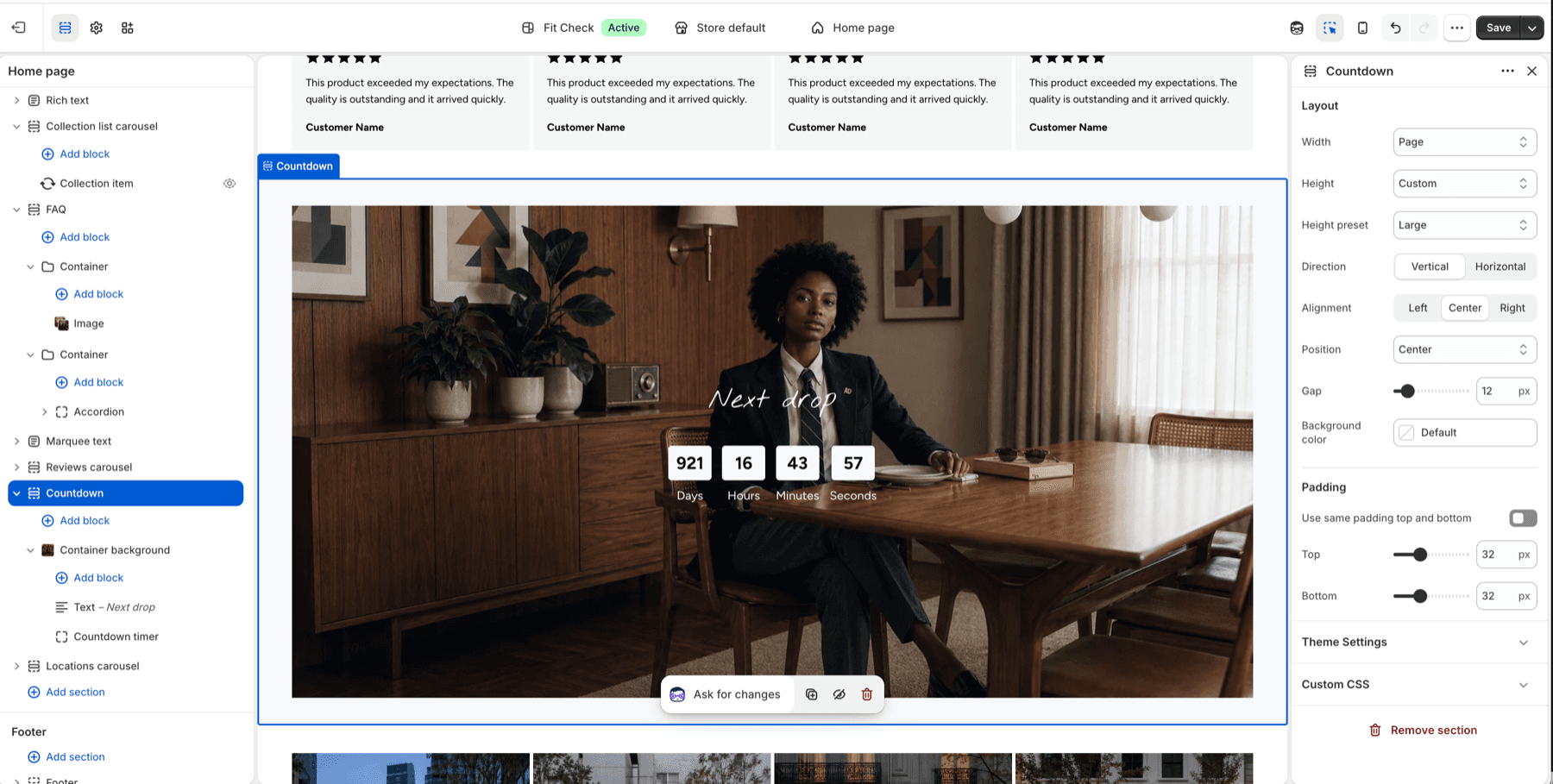
Configure the Section
- In the theme editor, click Add section.
- Select Countdown.
- Add text, image, or container blocks as needed.
- Add a Countdown timer block and set the target date.
Section Settings
| Setting | Description |
|---|---|
| Width | Choose Page, Full screen, or Custom width. Custom width ranges from 60-100%. |
| Height | Choose Auto, Full screen, or Custom. Custom height uses Small, Medium, Large, or a custom percentage. |
| Direction | Lay child blocks out vertically or horizontally. Default preset uses a vertical layout. |
| Vertical on mobile | Stack horizontal layouts on mobile. |
| Alignment | Control horizontal alignment for the active direction. |
| Position | Control vertical placement for the active direction. |
| Gap | Space between child blocks. Range: 0-100px. Default: 12px. |
| Background color | Optional section background color. Leave Default to use the theme surface. |
| Padding | Use one all-sides value or separate Top, Bottom, Left, and Right values. Default: 32px unified; 0px left/right in split mode. |
Blocks
The section accepts containers, container backgrounds, theme blocks, app blocks, and dividers. The default preset starts with a Container background that contains a Text block and a Countdown timer block.
Countdown Timer Block
The Countdown timer block counts down to a target date and can show days, hours, minutes, and seconds.
| Setting | Description |
|---|---|
| Target date | Date and time in YYYY-MM-DDTHH:MM:SS format. |
| Days / Hours / Minutes / Seconds label | Customize each timer unit label. |
| Expired text | Text shown when the timer reaches zero. |
| Show days / hours / minutes / seconds | Toggle individual timer units. |
| Numbers settings | Control number style, custom font, size, weight, color, background, padding, and radius. |
| Labels settings | Control label style, custom font, size, weight, color, and spacing. |