Collection List
Display a curated list of collections as a carousel or grid. Use collection lists to help customers browse your store by category from the home page or landing pages.
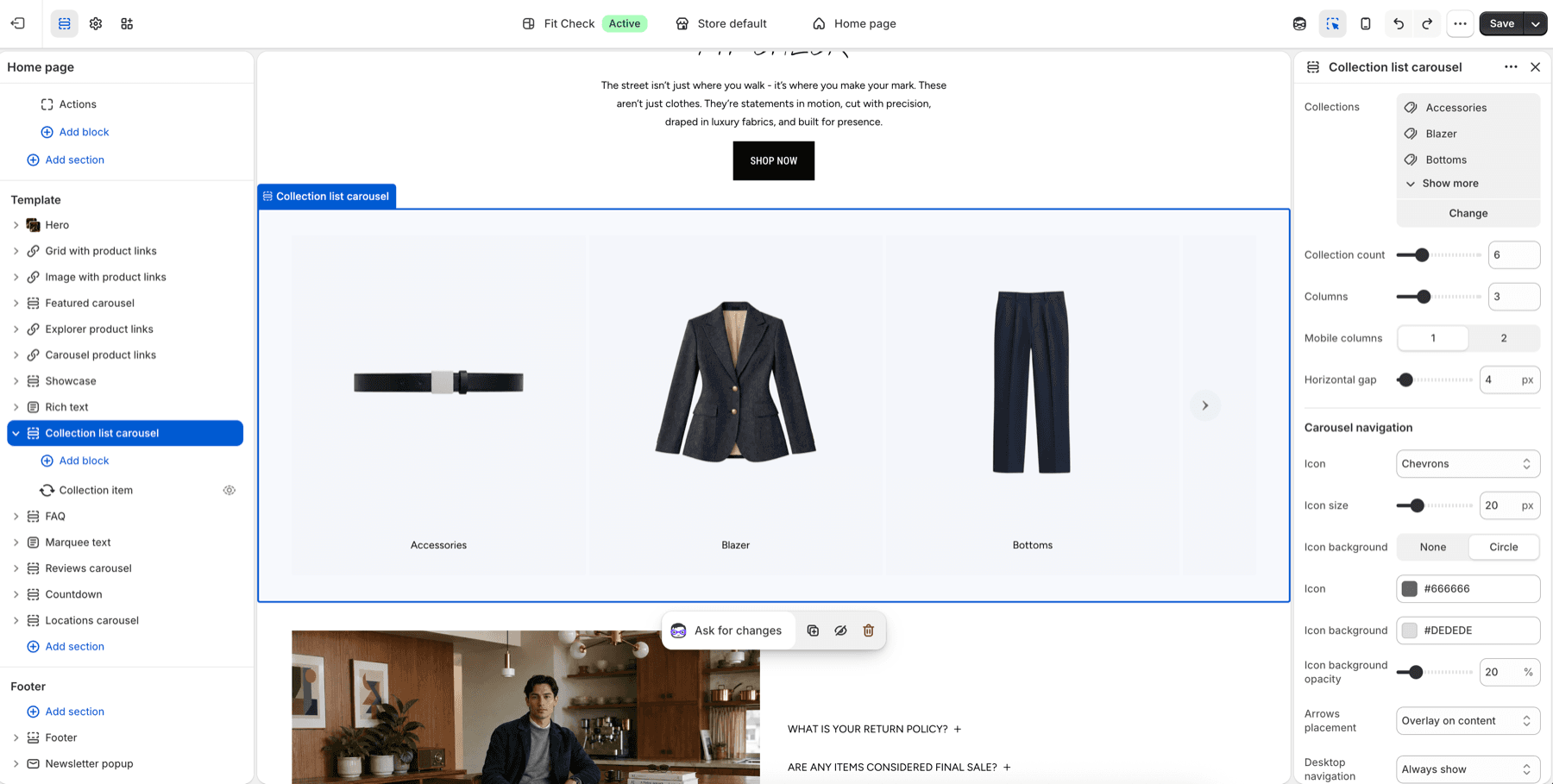
Configure the Section
- In the theme editor, click Add section.
- Select Collection list carousel for a swipeable row or Collection list grid for a fixed grid.
- Choose the collections to display.
Section Settings
| Setting | Description |
|---|---|
| Collections | Select the collections to display. |
| Collection count | Maximum number of collections to show. Range: 1-20. |
| Columns | Number of visible desktop columns or carousel slides. Range: 1-8. |
| Mobile columns | 1 or 2 columns/cards on mobile. |
| Horizontal gap | Spacing between collection cards. Range: 0-100px. |
| Width | Page or Full. Default: Page. |
| Gap | Spacing between manually added blocks and the generated collection list. |
| Background color | Optional section background override. |
| Padding | Set top and bottom padding independently or use one shared value. |
Carousel Navigation
Collection list carousel includes navigation controls:
| Setting | Description |
|---|---|
| Icon | Choose chevrons, a custom icon, or no icon. |
| Icon size | Size of navigation arrows in pixels. |
| Icon background | Use no background or a circular background. |
| Icon color | Color for navigation icons. |
| Icon background color and opacity | Background color and opacity for circular controls. |
| Arrows placement | Place arrows as an overlay on content or below the carousel. |
| Desktop navigation visibility | Always show arrows or show them only on hover. |
| Hide carousel navigation on mobile | Hide arrows when the carousel is gesture-driven on mobile. |
Tips
- Use collection images or configured collection placeholders so each card feels intentional.
- Keep the collection count close to the number of categories customers need for the page.
- Use carousel mode for compact home-page browsing and grid mode when the collection list is the main page content.