Explorer Product Links
A shoppable accordion section that pairs outfit occasions with interactive product images. Explorer Product Links is covered in the consolidated Product Links guide alongside Grid, Carousel, Video, and reusable Image/Video product-link blocks.
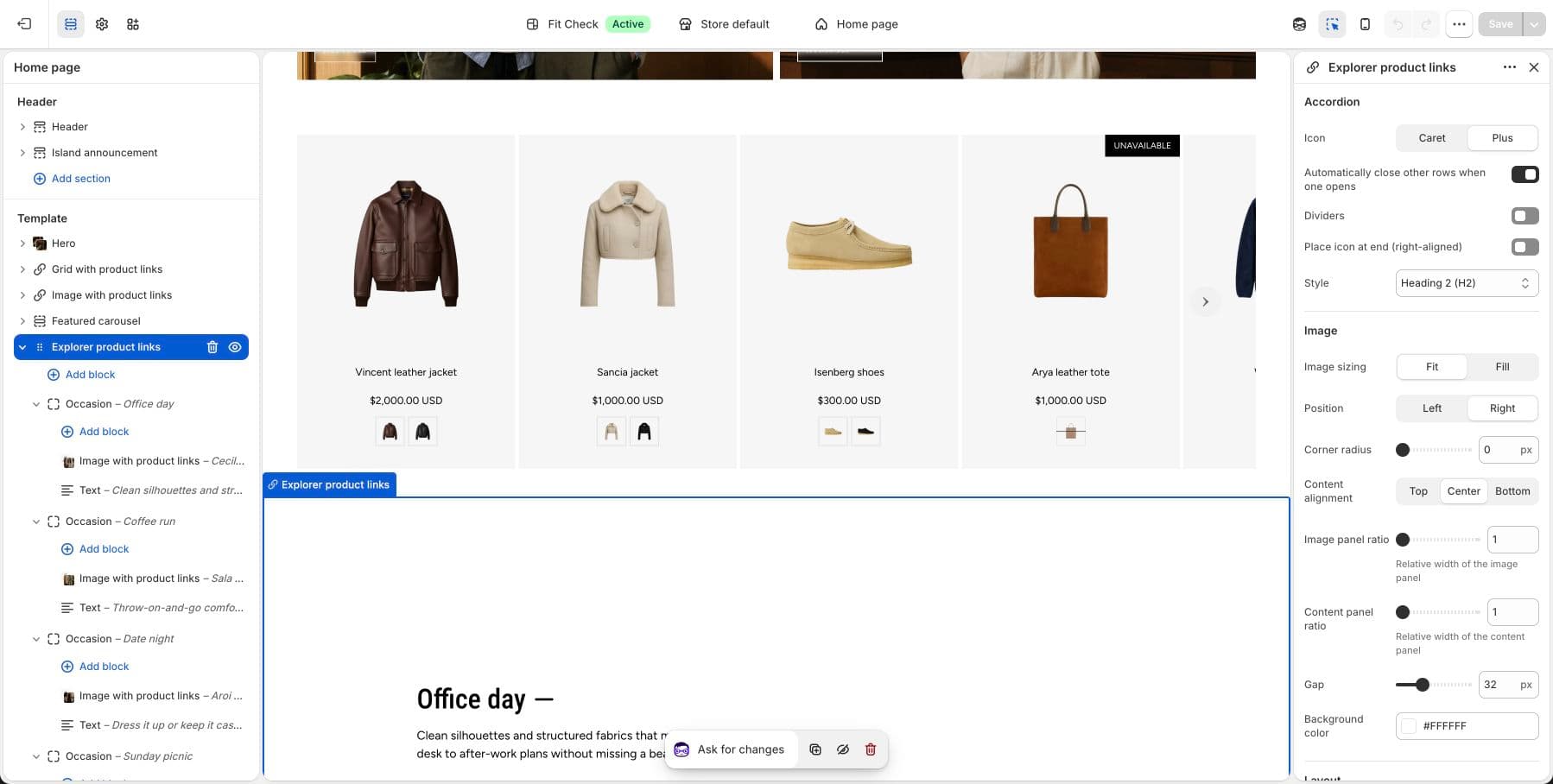
Configure the Section
Use Product Links for setup steps, covered section variants, media block settings, product data guidance, and publish checks.
- Add rowsCreate one Occasion row for each look, use case, or feature you want customers to explore.
- Attach mediaAdd Image with product links or Video with product links inside each row.
- Tag productsSelect products for each media block and confirm the product cards are readable.
- Review mobileOn mobile, the media stacks above the accordion. Check that row labels, product cards, and buttons remain easy to tap.
Section Settings
| Setting | Description |
|---|---|
| Icon style | Accordion toggle icon — Caret or Plus/minus. Default: Plus. |
| Auto-close other rows | When one row opens, close all others. Default: On. |
| Show dividers | Display divider lines between rows. Default: Off. |
| Place icon at end | Move the toggle icon to the right side. Default: Off. |
| Heading preset | Typography preset for row headings — H1 through H6. Default: H4. |
| Image position | Gallery placement — Left or Right. Default: Right. |
| Border radius | Rounded corners on gallery media. Range: 0–32px. Default: 0. |
| Content alignment | Vertical alignment of the accordion panel — Top, Center, or Bottom. Default: Center. |
| Gap between panels | Spacing between accordion and gallery. Range: 0–100px. Default: 32px. |
| Section width | Page width, Full width, or Custom (60–100%). Default: Page width. |
| Padding | Use one all-sides value or set top, bottom, left, and right independently. Range: 0–100px. Default: 32px unified; 0px left/right in split mode. |
Row Block Settings
Each Occasion row block supports the following:
| Setting | Description |
|---|---|
| Heading | The occasion name displayed in the accordion (e.g., “Date night”, “Coffee run”). |
| Open by default | Whether this row starts expanded. Default: Off. |
Child Blocks
Each row accepts child blocks for its content:
- Image with product links — A shoppable image with up to six linked products or custom links.
- Video with product links — A shoppable video with up to six linked products or custom links.
- Text — Descriptive text about the occasion or styling tips.
- Button — Call-to-action link (e.g., “Shop this look”).
- Custom Liquid — Inline Liquid code.
- App blocks — Third-party app content.
How It Works
When a visitor clicks an accordion row, the gallery panel switches to show that row’s media block (image or video with product links). The product links inside the media block remain fully interactive: visitors can hover to reveal product cards, then open the product page or quick add according to the media block’s Product link action setting. Custom links continue to navigate to their assigned destination.
Responsive Behavior
On screens narrower than 750px, the section stacks vertically with the media on top and the accordion below.