Search template
Open Search in the template picker and use a query that returns real catalog results. Set Card surface style, Background / Text and links, and Button background / Button text. Check the Filters button and search controls against their surfaces.
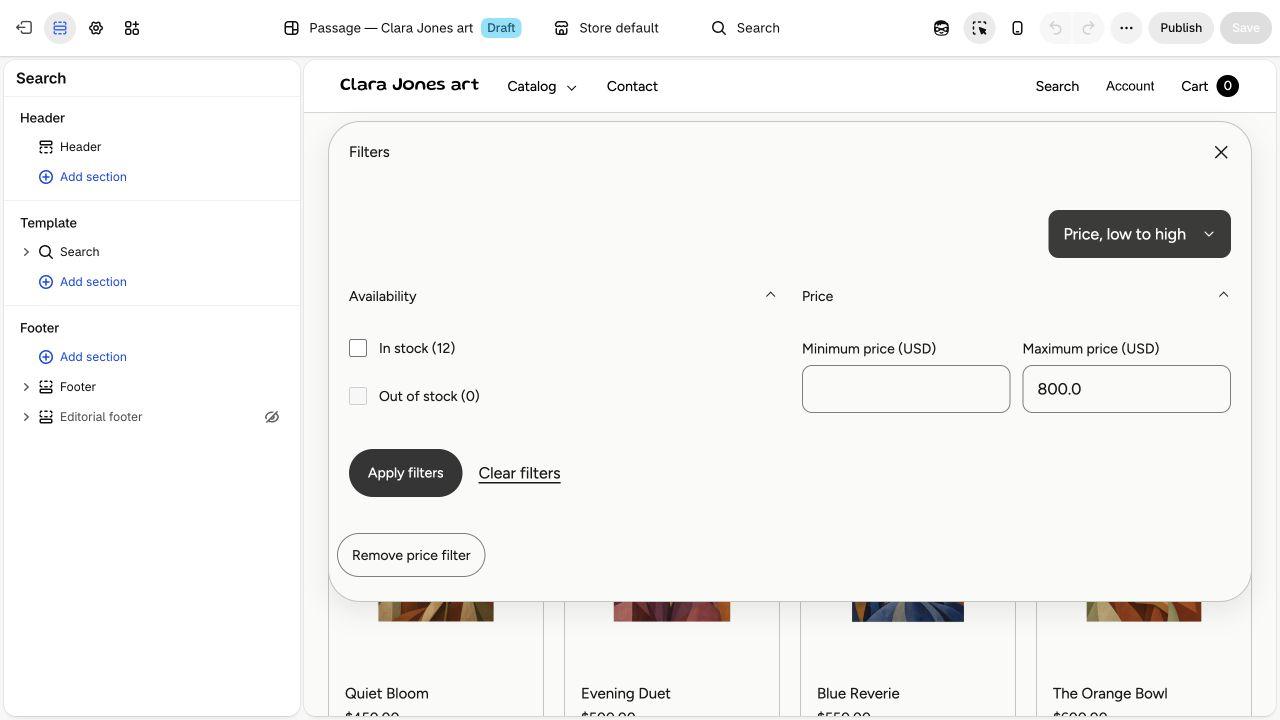
Check three search states
- Search a product name and verify the result leads to that product.
- Search a term that returns products and content. Confirm the available result types and try sorting or applying filters where shown.
- Search a made-up term and check the empty state. Clear the query and use the search from the header to verify its suggestions separately.
See Search and filters for setup steps and a screenshot of the full results page.
Blocks
Settings overview
General
| Setting | Description | Options |
|---|---|---|
| Card surface style | Sets the finish used on the section’s cards. | Flat, Glass, Beveled. |
Colors
| Setting | Description | Options |
|---|---|---|
| Background | Sets the section background. Leave blank to use its inherited color. | Palette color or custom color. |
| Text and links | Styles the section’s text and links. Check it against the background. | Palette color or custom color. |
| Button background | Sets the action button fill where this section displays a button. | Palette color or custom color. |
| Button text | Sets the button label color. Choose a color that reads clearly on the button fill. | Palette color or custom color. |