Hero Media
Use one image or a Shopify-hosted video with a group of text and buttons.
How to customize
In the editor, open a template and choose Add section → Hero Media. Select the section to configure its media and frame. Expand individual Heading, Text and Button blocks to edit the overlay.
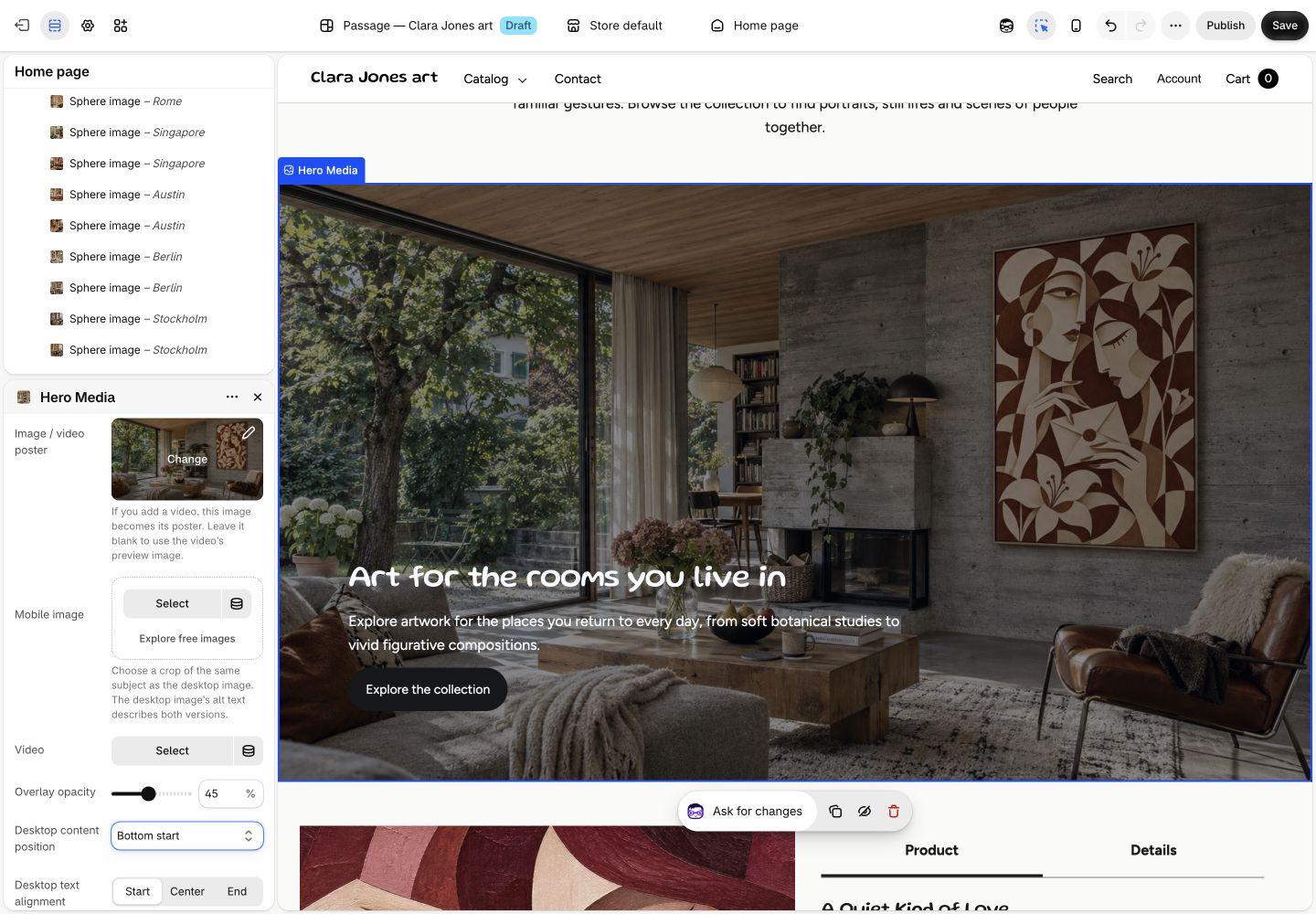
Position and size
Choose Desktop content position and Mobile content position separately. Each moves the whole group of blocks to one of nine positions. Then set Desktop text alignment and Mobile text alignment to align the lines inside that group. For example, Bottom start places the group near the lower start edge while Start aligns the text and buttons within the group.
Desktop height (% of screen) and Mobile height (% of screen) range from 30 to 80. Start at 55% desktop and 50% mobile when you need room for a heading and button. Test with your longest copy at both widths.
Captions, transcript and blocks
With a video selected, add Caption file URL (.vtt) and set Caption language code when supplied. Enter Transcript and visual description when viewers need an equivalent text version. Transcript text colors that text when a transcript is present. Test captions and playback with the real video in Images and video.
Heading and Text blocks have their own Font, Font size, and Text and links controls. A Custom font or size opens the matching picker. A Button block provides Button label, Button link, Background, and Button text. Move or hide blocks in the sidebar to change display order.
Blocks
Settings overview
General
| Setting | Description | Options |
|---|---|---|
| Image / video poster | Sets the main image or the poster for the selected video. If empty, the video’s preview image can supply the poster. | Shopify image. |
| Mobile image | Sets an alternate mobile crop of the same subject. The desktop image’s alt text describes both versions. | Shopify image. Available when Video is empty. |
| Video | Chooses a Shopify-hosted video for the hero. | Shopify-hosted video. |
| Autoplay background video | Requests muted background video playback when eligible. | On or Off. Available when a video is selected and its caption URL is empty. |
| Overlay opacity | Sets how strongly the overlay darkens the hero media. | 0–100 %. |
| Desktop content position | Moves the whole group of heading, copy and actions within the section. | Top start, Top center, Top end, Middle start, Middle center, Middle end, Bottom start, Bottom center, Bottom end. |
| Desktop text alignment | Aligns the text and buttons inside the content group. | Start, Center, End. |
| Mobile content position | Moves the group of heading, copy and actions in the mobile layout. | Top start, Top center, Top end, Middle start, Middle center, Middle end, Bottom start, Bottom center, Bottom end. |
| Mobile text alignment | Aligns the text and buttons inside the mobile content group. | Start, Center, End. |
| Desktop height (% of screen) | Sets the desktop frame height relative to the screen. | 30–80 %. |
| Mobile height (% of screen) | Sets the mobile frame height relative to the screen. | 30–80 %. |
Video accessibility
| Setting | Description | Options |
|---|---|---|
| Caption file URL (.vtt) | Adds a WebVTT captions track for the video. | URL. Available when a video is selected. |
| Caption language code | Identifies the language of the captions track. | Plain text. Available when a video and captions URL are set. |
| Transcript and visual description | Adds a text transcript or description for visitors who need an equivalent to the video. | Rich text. Available when a video is selected. |
Colors
| Setting | Description | Options |
|---|---|---|
| Background | Sets the fallback surface behind the hero media and copy. | Palette color or custom color. |
| Transcript text | Sets the color of the transcript text and its links. | Palette color or custom color. Available when a video and transcript are set. |